Firebase Storage로 이미지 업로드하기 — 갤러리/카메라 선택 + 업로드 진행률 표시
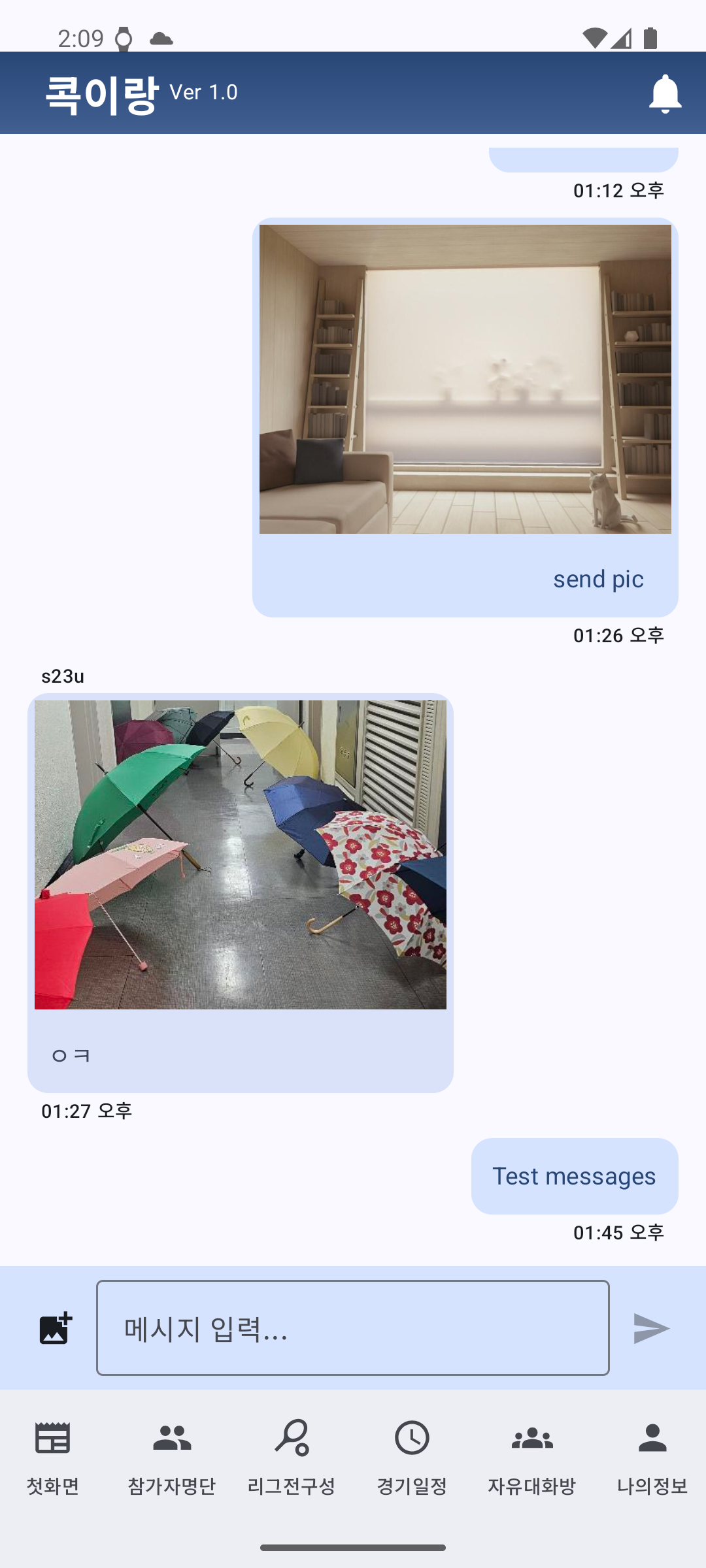
이 글은 Jetpack Compose로 만든 안드로이드 앱에서 Firebase Storage에 이미지를 업로드하는 전 과정을 다룹니다. 사용자는 갤러리에서 이미지 선택 혹은 카메라로 촬영한 사진을 업로드할 수 있고, 업로드 진행률과 다운로드 URL을 바로 확인할 수 있습니다. 초보자분들도 그대로 따라 하면 동작하도록 전체 코드와 함께 단계별로 설명했습니다.
목차
- 사전 준비
- Gradle & 프로젝트 설정
- 권한 & FileProvider 설정
- 갤러리/카메라 선택 UI (Compose)
- Firebase Storage 업로드 + 진행률
- 완성 화면(Compose) 구성
- Storage 보안 규칙(테스트/운영)
- 자주 만나는 오류 & 해결법
- 전체 코드 모음
- 다음 단계 아이디어
1) 사전 준비
- Firebase 콘솔에서 프로젝트 생성 → Android 앱 등록 →
google-services.json을app/폴더에 복사 - Firebase 콘솔 > Storage에서 시작하기 (초기엔 테스트 규칙 가능)
- Android Studio 최신 버전 권장, minSdk 24+ 예시
2) Gradle & 프로젝트 설정
settings.gradle
pluginManagement {
    repositories {
        google()
        mavenCentral()
        gradlePluginPortal()
    }
}

dependencyResolutionManagement {
    repositoriesMode.set(RepositoriesMode.FAIL_ON_PROJECT_REPOS)
    repositories {
        google()
        mavenCentral()
    }
}
프로젝트 루트 build.gradle
buildscript {
    dependencies {
        // Google Services 플러그인
        classpath("com.google.gms:google-services:4.4.2")
    }
}
앱 모듈 app/build.gradle.kts
plugins {
    id("com.android.application")
    id("org.jetbrains.kotlin.android")
    id("com.google.gms.google-services")
}

android {
    namespace = "com.example.firebaseupload"
    compileSdk = 34

    defaultConfig {
        applicationId = "com.example.firebaseupload"
        minSdk = 24
        targetSdk = 34
        versionCode = 1
        versionName = "1.0"
    }
}

dependencies {
    // Firebase BOM: 버전 하나로 일괄 관리
    implementation(platform("com.google.firebase:firebase-bom:33.1.2"))
    // KTX 사용 시 -ktx 종속성 권장
    implementation("com.google.firebase:firebase-storage-ktx")

    // Compose 필수 의존성 (버전은 프로젝트에 맞게 조정 가능)
    implementation("androidx.activity:activity-compose:1.9.0")
    implementation("androidx.compose.ui:ui:1.6.8")
    implementation("androidx.compose.material3:material3:1.2.1")
    implementation("androidx.lifecycle:lifecycle-runtime-ktx:2.8.4")

    // 이미지 미리보기(선택)
    implementation("io.coil-kt:coil-compose:2.6.0")
}
Tip: Firebase BOM은 수시로 업데이트됩니다. 새 프로젝트에선 최신 BOM을 사용하세요.
3) 권한 & FileProvider 설정
AndroidManifest.xml
<manifest ...>
    <uses-permission android:name="android.permission.CAMERA" />

    <application ...>
        <provider
            android:name="androidx.core.content.FileProvider"
            android:authorities="${applicationId}.provider"
            android:exported="false"
            android:grantUriPermissions="true">
            <meta-data
                android:name="android.support.FILE_PROVIDER_PATHS"
                android:resource="@xml/file_paths" />
        </provider>
    </application>
</manifest>
res/xml/file_paths.xml
<paths xmlns:android="http://schemas.android.com/apk/res/android">
    <cache-path name="cache" path="." />
</paths>
카메라 촬영 결과를 임시 파일에 저장하려면 FileProvider가 필요합니다. cache-path는 앱의 캐시 디렉토리를 공유 가능 경로로 노출합니다. 일부 기기에서는 카메라 권한을 런타임으로 요청해야 할 수도 있습니다.
4) 갤러리/카메라 선택 UI (Compose)
Activity Result API를 사용해 갤러리(GetContent)와 카메라(TakePicture)를 호출합니다. 카메라의 경우 미리 만든 임시 Uri를 전달해야 합니다.
/** ImagePickerWithCamera.kt */
import android.net.Uri
import androidx.activity.compose.rememberLauncherForActivityResult
import androidx.activity.result.contract.ActivityResultContracts
import androidx.compose.foundation.layout.Row
import androidx.compose.foundation.layout.Arrangement
import androidx.compose.material3.Button
import androidx.compose.material3.Text
import androidx.compose.runtime.Composable
import androidx.compose.runtime.remember
import androidx.compose.ui.unit.dp
import androidx.compose.ui.platform.LocalContext
import androidx.core.content.FileProvider
import java.io.File

@Composable
fun ImagePickerWithCamera(onImageSelected: (Uri) -> Unit) {
    val context = LocalContext.current

    // 카메라 촬영을 위한 임시 파일 & Uri
    val imageFile = remember { File(context.cacheDir, "temp_${System.currentTimeMillis()}.jpg") }
    val imageUri = FileProvider.getUriForFile(
        context,
        "${context.packageName}.provider",
        imageFile
    )

    val cameraLauncher = rememberLauncherForActivityResult(
        contract = ActivityResultContracts.TakePicture()
    ) { success -> if (success) onImageSelected(imageUri) }

    val galleryLauncher = rememberLauncherForActivityResult(
        contract = ActivityResultContracts.GetContent()
    ) { uri -> uri?.let(onImageSelected) }

    Row(horizontalArrangement = Arrangement.spacedBy(8.dp)) {
        Button(onClick = { cameraLauncher.launch(imageUri) }) { Text("카메라 촬영") }
        Button(onClick = { galleryLauncher.launch("image/*") }) { Text("갤러리 선택") }
    }
}
초보자 포인트:
rememberLauncherForActivityResult는 외부 액티비티(갤러리/카메라)를 호출하고 결과를 콜백으로 받는 도우미입니다.- 카메라는 사진을 어디에 저장할지 알아야 하므로, 미리 만든 파일의 Uri를 전달합니다.
5) Firebase Storage 업로드 + 진행률
putFile로 업로드를 시작하고, addOnProgressListener로 진행률을 수신합니다. 완료되면 downloadUrl을 받아 사용자에게 보여줄 수 있습니다.
/** FirebaseUpload.kt */
import android.net.Uri
import com.google.firebase.ktx.Firebase
import com.google.firebase.storage.ktx.storage

fun uploadImageToFirebaseWithProgress(
    uri: Uri,
    onProgress: (Int) -> Unit,
    onResult: (String?) -> Unit
) {
    val storageRef = Firebase.storage.reference
    val fileRef = storageRef.child("uploads/${System.currentTimeMillis()}.jpg")

    val uploadTask = fileRef.putFile(uri)
    uploadTask
        .addOnProgressListener { snap ->
            val p = (100.0 * snap.bytesTransferred / snap.totalByteCount).toInt()
            onProgress(p)
        }
        .addOnSuccessListener {
            fileRef.downloadUrl.addOnSuccessListener { url -> onResult(url.toString()) }
        }
        .addOnFailureListener { e ->
            e.printStackTrace()
            onResult(null)
        }
}
초보자 포인트:
uploads/폴더 아래에 타임스탬프 기반 파일명을 사용해 중복을 피합니다.- 성공 시 URL은 공유 가능한 다운로드 링크입니다. (규칙에 따라 접근 제한 가능)
6) 완성 화면(Compose) 구성
버튼 한 번으로 선택/촬영 후 업로드까지 이어지고, 이미지 미리보기와 진행률, 최종 URL을 보여주는 간단한 화면입니다.
/** UploadImageScreenWithCamera.kt */
import android.net.Uri
import androidx.compose.foundation.layout.*
import androidx.compose.foundation.text.selection.SelectionContainer
import androidx.compose.material3.*
import androidx.compose.runtime.*
import androidx.compose.ui.Alignment
import androidx.compose.ui.Modifier
import androidx.compose.ui.graphics.Color
import androidx.compose.ui.unit.dp
import coil.compose.AsyncImage

@Composable
fun UploadImageScreenWithCamera() {
    var imageUri by remember { mutableStateOf<Uri?>(null) }
    var uploadedUrl by remember { mutableStateOf<String?>(null) }
    var progress by remember { mutableStateOf(0) }

    Column(
        modifier = Modifier
            .fillMaxSize()
            .padding(16.dp),
        horizontalAlignment = Alignment.CenterHorizontally
    ) {
        ImagePickerWithCamera { uri ->
            imageUri = uri
            progress = 0
            uploadedUrl = null
            uploadImageToFirebaseWithProgress(
                uri,
                onProgress = { p -> progress = p },
                onResult = { url -> uploadedUrl = url }
            )
        }

        Spacer(Modifier.height(16.dp))

        imageUri?.let {
            Text("선택/촬영한 이미지:")
            AsyncImage(
                model = it,
                contentDescription = null,
                modifier = Modifier.size(200.dp)
            )
        }

        if (progress in 1..99) {
            Spacer(Modifier.height(8.dp))
            Text("업로드 중: ${'$'}progress%")
        }

        uploadedUrl?.let {
            Spacer(Modifier.height(16.dp))
            Text("업로드 완료 URL:", color = Color(0xFF16A34A))
            SelectionContainer { Text(it, color = Color(0xFF2563EB)) }
        }
    }
}
MainActivity 설정
/** MainActivity.kt */
import android.os.Bundle
import androidx.activity.ComponentActivity
import androidx.activity.compose.setContent

class MainActivity : ComponentActivity() {
    override fun onCreate(savedInstanceState: Bundle?) {
        super.onCreate(savedInstanceState)
        setContent { UploadImageScreenWithCamera() }
    }
}
동작 흐름: 버튼 클릭 → (갤러리/카메라) 선택 → Firebase 업로드 시작 → 진행률 표시 → URL 표시
7) Storage 보안 규칙
개발 중(테스트) 규칙 — 반드시 운영 전 교체
service firebase.storage {
  match /b/{bucket}/o {
    match /{allPaths=**} {
      allow read, write: if true; // 테스트 모드: 누구나 접근 (위험)
    }
  }
}
예시) 로그인 사용자만 자신의 폴더에 업로드/읽기
service firebase.storage {
  match /b/{bucket}/o {
    match /user_uploads/{uid}/{allPaths=**} {
      allow read, write: if request.auth != null && request.auth.uid == uid;
    }
  }
}
운영 시 권장: Firebase Authentication(익명/이메일/소셜)과 함께 사용자별 경로를 사용하세요.
8) 자주 만나는 오류 & 해결법
- Manifest merger failed / FileProvider 오류 →
android:authorities="${applicationId}.provider"가 앱 ID와 정확히 일치하는지 확인. - Permission Denied → Storage 규칙을 확인. 개발 중엔 테스트 규칙, 운영은 인증 기반 규칙 사용.
- 이미지 미리보기가 안 보임 → Coil 의존성 추가/버전 확인,
AsyncImage에 올바른Uri전달. - 업로드가 매우 느림 → 네트워크 상태 점검, 사진 크기 줄이기(리사이즈/압축) 고려.
9) 전체 코드 모음 (복사해서 바로 사용)
build.gradle.kts (app)
plugins {
    id("com.android.application")
    id("org.jetbrains.kotlin.android")
    id("com.google.gms.google-services")
}

android {
    namespace = "com.example.firebaseupload"
    compileSdk = 34

    defaultConfig {
        applicationId = "com.example.firebaseupload"
        minSdk = 24
        targetSdk = 34
        versionCode = 1
        versionName = "1.0"
    }
}

dependencies {
    implementation(platform("com.google.firebase:firebase-bom:33.1.2"))
    implementation("com.google.firebase:firebase-storage-ktx")

    implementation("androidx.activity:activity-compose:1.9.0")
    implementation("androidx.compose.ui:ui:1.6.8")
    implementation("androidx.compose.material3:material3:1.2.1")
    implementation("androidx.lifecycle:lifecycle-runtime-ktx:2.8.4")

    implementation("io.coil-kt:coil-compose:2.6.0")
}
AndroidManifest.xml
<uses-permission android:name="android.permission.CAMERA" />

<application ...>
    <provider
        android:name="androidx.core.content.FileProvider"
        android:authorities="${applicationId}.provider"
        android:exported="false"
        android:grantUriPermissions="true">
        <meta-data
            android:name="android.support.FILE_PROVIDER_PATHS"
            android:resource="@xml/file_paths" />
    </provider>
</application>
res/xml/file_paths.xml
<paths xmlns:android="http://schemas.android.com/apk/res/android">
    <cache-path name="cache" path="." />
</paths>
ImagePickerWithCamera.kt
import android.net.Uri
import androidx.activity.compose.rememberLauncherForActivityResult
import androidx.activity.result.contract.ActivityResultContracts
import androidx.compose.foundation.layout.Arrangement
import androidx.compose.foundation.layout.Row
import androidx.compose.material3.Button
import androidx.compose.material3.Text
import androidx.compose.runtime.Composable
import androidx.compose.runtime.remember
import androidx.compose.ui.platform.LocalContext
import androidx.compose.ui.unit.dp
import androidx.core.content.FileProvider
import java.io.File

@Composable
fun ImagePickerWithCamera(onImageSelected: (Uri) -> Unit) {
    val context = LocalContext.current

    val imageFile = remember { File(context.cacheDir, "temp_${System.currentTimeMillis()}.jpg") }
    val imageUri = FileProvider.getUriForFile(
        context,
        "${context.packageName}.provider",
        imageFile
    )

    val cameraLauncher = rememberLauncherForActivityResult(
        contract = ActivityResultContracts.TakePicture()
    ) { success -> if (success) onImageSelected(imageUri) }

    val galleryLauncher = rememberLauncherForActivityResult(
        contract = ActivityResultContracts.GetContent()
    ) { uri -> uri?.let(onImageSelected) }

    Row(horizontalArrangement = Arrangement.spacedBy(8.dp)) {
        Button(onClick = { cameraLauncher.launch(imageUri) }) { Text("카메라 촬영") }
        Button(onClick = { galleryLauncher.launch("image/*") }) { Text("갤러리 선택") }
    }
}
FirebaseUpload.kt
import android.net.Uri
import com.google.firebase.ktx.Firebase
import com.google.firebase.storage.ktx.storage

fun uploadImageToFirebaseWithProgress(
    uri: Uri,
    onProgress: (Int) -> Unit,
    onResult: (String?) -> Unit
) {
    val storageRef = Firebase.storage.reference
    val fileRef = storageRef.child("uploads/${System.currentTimeMillis()}.jpg")

    val uploadTask = fileRef.putFile(uri)
    uploadTask
        .addOnProgressListener { snap ->
            val p = (100.0 * snap.bytesTransferred / snap.totalByteCount).toInt()
            onProgress(p)
        }
        .addOnSuccessListener {
            fileRef.downloadUrl.addOnSuccessListener { url -> onResult(url.toString()) }
        }
        .addOnFailureListener { onResult(null) }
}
UploadImageScreenWithCamera.kt
import android.net.Uri
import androidx.compose.foundation.layout.*
import androidx.compose.foundation.text.selection.SelectionContainer
import androidx.compose.material3.*
import androidx.compose.runtime.*
import androidx.compose.ui.Alignment
import androidx.compose.ui.Modifier
import androidx.compose.ui.graphics.Color
import androidx.compose.ui.unit.dp
import coil.compose.AsyncImage

@Composable
fun UploadImageScreenWithCamera() {
    var imageUri by remember { mutableStateOf<Uri?>(null) }
    var uploadedUrl by remember { mutableStateOf<String?>(null) }
    var progress by remember { mutableStateOf(0) }

    Column(
        modifier = Modifier
            .fillMaxSize()
            .padding(16.dp),
        horizontalAlignment = Alignment.CenterHorizontally
    ) {
        ImagePickerWithCamera { uri ->
            imageUri = uri
            progress = 0
            uploadedUrl = null
            uploadImageToFirebaseWithProgress(
                uri,
                onProgress = { p -> progress = p },
                onResult = { url -> uploadedUrl = url }
            )
        }

        Spacer(Modifier.height(16.dp))

        imageUri?.let {
            Text("선택/촬영한 이미지:")
            AsyncImage(model = it, contentDescription = null, modifier = Modifier.size(200.dp))
        }

        if (progress in 1..99) {
            Spacer(Modifier.height(8.dp))
            Text("업로드 중: ${'$'}progress%")
        }

        uploadedUrl?.let {
            Spacer(Modifier.height(16.dp))
            Text("업로드 완료 URL:", color = Color(0xFF16A34A))
            SelectionContainer { Text(it, color = Color(0xFF2563EB)) }
        }
    }
}
MainActivity.kt
import android.os.Bundle
import androidx.activity.ComponentActivity
import androidx.activity.compose.setContent

class MainActivity : ComponentActivity() {
    override fun onCreate(savedInstanceState: Bundle?) {
        super.onCreate(savedInstanceState)
        setContent { UploadImageScreenWithCamera() }
    }
}
10) 다음 단계 아이디어
- Firebase Authentication 연동해 사용자별 업로드 제한 및 이력 관리
- 업로드한 메타데이터(파일명, URL, 작성자, 시간)를 Firestore에 저장
- 썸네일/압축 생성, EXIF 제거 등 이미지 전처리
- 사용자별 폴더 구조:
user_uploads/{uid}/...


댓글 없음:
댓글 쓰기