Android Studio를 사용하여 Google Maps 연동 앱 만들기
소개
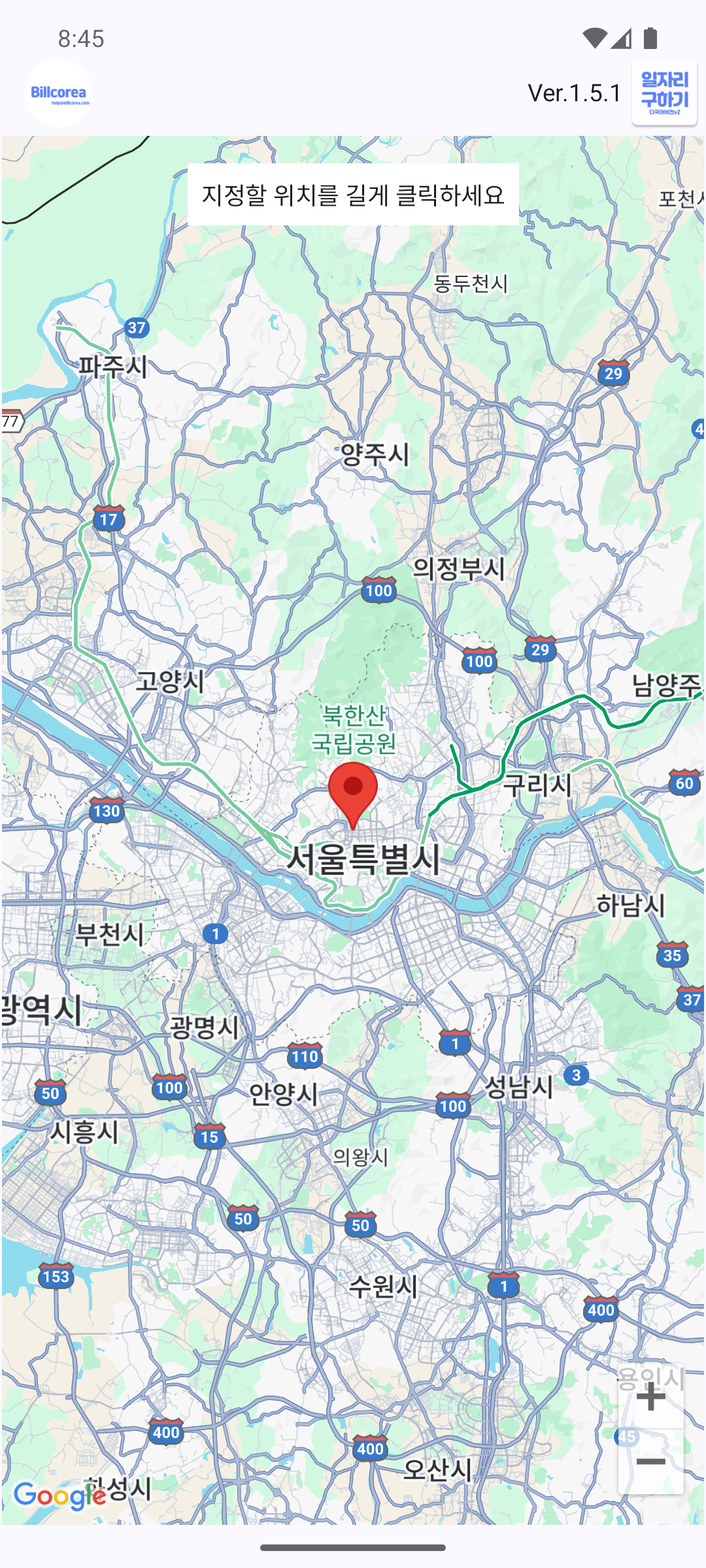
이번 포스트에서는 Android Studio와 Jetpack Compose를 사용하여 Google Maps를 연동하는 방법을 알아보겠습니다. 이를 통해 앱에서 지도를 표시하고, 사용자가 지도를 길게 클릭했을 때 해당 위치의 좌표를 얻는 기능을 구현할 수 있습니다.
준비물
- Android Studio 설치
- Google Cloud Platform 계정 및 프로젝트 생성
- Google Maps API Key 발급
단계별 구현
1. 프로젝트 생성 및 설정
- 새 프로젝트 생성:
- Android Studio에서 새 프로젝트를 생성하고 "Empty Compose Activity" 템플릿을 선택합니다.
- Google Maps API Key 발급:
- Google Cloud Platform에 로그인하고 프로젝트를 생성합니다.
- "API 및 서비스" > "라이브러리"로 이동하여 "Maps SDK for Android"를 활성화합니다.
- "API 및 서비스" > "인증 정보"로 이동하여 "API 키 만들기"를 클릭합니다.
- 생성된 API 키를 복사해둡니다.
- 프로젝트 설정:
- build.gradle (Project: <your_project_name>) 파일에 Google Maven 저장소를 추가합니다:
allprojects {
    repositories {
        google()
        mavenCentral()
    }
}
- build.gradle (Module: app) 파일에 필요한 의존성을 추가합니다:
dependencies {
    implementation 'com.google.accompanist:accompanist-permissions:0.30.0'
    implementation 'com.google.maps.android:maps-compose:2.1.0'
    implementation 'com.google.android.gms:play-services-maps:18.0.2'
}
- build.gradle (Project: <your_project_name>) 파일에 Google Maven 저장소를 추가합니다:
- AndroidManifest.xml 설정:
<manifest xmlns:android="http://schemas.android.com/apk/res/android"
    package="com.example.yourapp">

    <uses-permission android:name="android.permission.INTERNET" />
    <uses-permission android:name="android.permission.ACCESS_FINE_LOCATION" />
    <uses-permission android:name="android.permission.ACCESS_COARSE_LOCATION" />

    <application
        android:allowBackup="true"
        android:icon="@mipmap/ic_launcher"
        android:label="@string/app_name"
        android:roundIcon="@mipmap/ic_launcher_round"
        android:supportsRtl="true"
        android:theme="@style/Theme.MyApplication">

        <meta-data
            android:name="com.google.android.geo.API_KEY"
            android:value="YOUR_API_KEY_HERE" />

        <activity android:name=".MainActivity">
            <intent-filter>
                <action android:name="android.intent.action.MAIN" />
                <category android:name="android.intent.category.LAUNCHER" />
            </intent-filter>
        </activity>
    </application>
</manifest>
2. MainActivity 설정
- MainActivity.kt 파일을 열어 Jetpack Compose와 Google Maps를 사용하여 지도를 표시하고, 지도에서 길게 클릭한 위치의 좌표를 얻습니다:
package com.example.yourapp

import android.os.Bundle
import android.widget.Toast
import androidx.activity.ComponentActivity
import androidx.activity.compose.setContent
import androidx.compose.foundation.layout.fillMaxSize
import androidx.compose.material3.MaterialTheme
import androidx.compose.material3.Surface
import androidx.compose.runtime.Composable
import androidx.compose.runtime.mutableStateOf
import androidx.compose.runtime.remember
import androidx.compose.ui.Modifier
import androidx.compose.ui.platform.LocalContext
import com.google.android.gms.maps.model.LatLng
import com.google.maps.android.compose.*

class MainActivity : ComponentActivity() {
    override fun onCreate(savedInstanceState: Bundle?) {
        super.onCreate(savedInstanceState)
        setContent {
            MyApplicationTheme {
                Surface(
                    modifier = Modifier.fillMaxSize(),
                    color = MaterialTheme.colorScheme.background
                ) {
                    MapScreen()
                }
            }
        }
    }
}

@Composable
fun MapScreen() {
    val context = LocalContext.current
    val cameraPositionState = rememberCameraPositionState {
        position = com.google.android.gms.maps.CameraPosition.fromLatLngZoom(LatLng(0.0, 0.0), 10f)
    }

    val selectedPosition = remember { mutableStateOf<LatLng?>(null) }

    GoogleMap(
        modifier = Modifier.fillMaxSize(),
        cameraPositionState = cameraPositionState,
        onMapLongClick = { latLng ->
            selectedPosition.value = latLng
            Toast.makeText(context, "Long clicked at: ${latLng.latitude}, ${latLng.longitude}", Toast.LENGTH_SHORT).show()
        }
    )

    selectedPosition.value?.let { position ->
        Marker(
            state = MarkerState(position = position),
            title = "Selected Position"
        )
    }
}
결과
이제 앱을 실행하면 지도가 표시되고, 사용자가 지도를 길게 클릭할 때마다 해당 위치의 좌표가 토스트 메시지로 표시되며, 선택된 위치에 마커가 추가됩니다.


댓글 없음:
댓글 쓰기