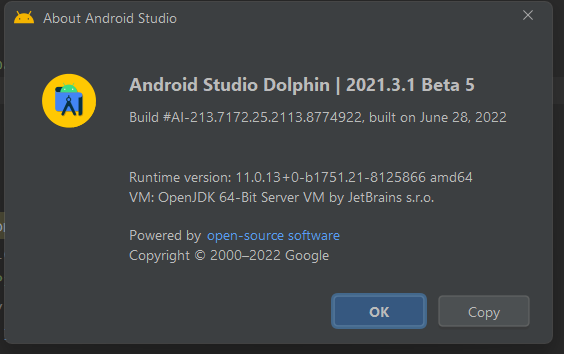
개발 툴에 패치가 있네요... 다른 건 아직이고 testOption에 대한 부분이 설명이 있어서 한번 읽어 볼꼐요..
Gradle Managed Virtual Devices (그래들 관리 가상 머신?)
In order to improve consistency, performance, and reliability when using Android Virtual Devices for your automated instrumented tests, we're introducing Gradle Managed Virtual Devices. This feature allows you to configure virtual test devices in your project's Gradle files that the build system uses to fully manage those devices—that is, create, deploy, and tear down—to execute your automated tests.
You can specify a virtual device that you want Gradle to use for testing your app in your module-level build.gradle file. The following code sample creates a Pixel 2 running API level 30 as a Gradle managed device.
자동화된 계측 테스트에 Android 가상 장치를 사용할 때 일관성, 성능 및 안정성을 개선하기 위해 Gradle 관리 가상 장치를 도입합니다. 이 기능을 사용하면 빌드 시스템이 자동화된 테스트를 실행하기 위해 해당 장치를 완전히 관리(즉, 생성, 배포 및 해체)하는 데 사용하는 프로젝트의 Gradle 파일에서 가상 테스트 장치를 구성할 수 있습니다.
모듈 수준 build.gradle 파일에서 Gradle이 앱 테스트에 사용할 가상 기기를 지정할 수 있습니다. 다음 코드 샘플은 API 레벨 30을 실행하는 Pixel 2를 Gradle 관리 기기로 생성합니다.
--- 아마도 테스트와 관련된 패치인 것으로 보이지만... 아직이라. 확인이 되면 다시 수정해 보도록 하겠습니다.
일반적으로는 background_location 은 잘 사용하지 않는다, 구글에서도 background_location 권한을 사용하는 경우에는 사용자에게 권한 사용을 하고 있다는 안내를 통해서 권한 획득을 해야 한다고 하고 있고, fine_location 권한까지는 릴리즈 하는 동안에도 그다지 크게 통제(?)를 하지는 않지만, background_location 권한은 playstore에 릴리즈 하는 동안에도 까다롭게 심사를 하는 편이다.
이제 화면을 Jetpack compose 을 통해서 구현할 것이니 코드를 보도록 하겠다.
@OptIn(ExperimentalPermissionsApi::class) @Composable fun MapsScreen ( navigator: DestinationsNavigator, ) {
// 기본위치 표시을 위해 싱가폴의 위치정보 val singapore = LatLng(1.35, 103.87) // 지도의 크기 조정에 따른 상태 기록 val cameraPositionState = rememberCameraPositionState { position = CameraPosition.fromLatLngZoom(singapore, 10f) } // 구글맵 환경설정 관리 var uiSettings by remember { mutableStateOf(MapUiSettings(zoomControlsEnabled = sp.getBoolean("isMyLocationEnabled", false))) } // 구글맵의 형태등을 관리 MayType.NORMAL 일반적인 맵, SATELLITE 위성사진, HYBRID 일반과 위성사진의 혼합등등 설정 var properties by remember { mutableStateOf(MapProperties(mapType = MapType.NORMAL, isMyLocationEnabled = sp.getBoolean("isMyLocationEnabled", false))) } // 권한 획득에 관한 설정 val permissionState = rememberPermissionState( permission = Manifest.permission.ACCESS_FINE_LOCATION, )
#스하리1000명프로젝트, In Korea verloren? Auch wenn Sie kein Koreanisch sprechen, hilft Ihnen diese App dabei, sich problemlos fortzubewegen. Sprechen Sie einfach Ihre Sprache – es übersetzt, sucht und zeigt Ergebnisse in Ihrer Sprache an. Ideal für Reisende! Unterstützt mehr als 10 Sprachen, darunter Englisch, Japanisch, Chinesisch, Vietnamesisch und mehr. Probieren Sie es jetzt aus! https://play.google.com/store/apps/details?id=com.billcoreatech.opdgang1127
@SuppressLint("UnusedMaterialScaffoldPaddingParameter", "CoroutineCreationDuringComposition") @Composable fun SnackBarShow( message:String, actionLabel: String, doDismissed:() -> Unit, doActionPerformed:() -> Unit ) { val scaffoldState = rememberScaffoldState() // this contains the `SnackbarHostState` val coroutineScope = rememberCoroutineScope()
Scaffold( modifier = Modifier, scaffoldState = scaffoldState // attaching `scaffoldState` to the `Scaffold` ) { coroutineScope.launch { // using the `coroutineScope` to `launch` showing the snackbar // taking the `snackbarHostState` from the attached `scaffoldState` val snackbarResult = scaffoldState.snackbarHostState.showSnackbar( message = message, actionLabel = actionLabel ) when (snackbarResult) { SnackbarResult.Dismissed -> { Log.e("SnackBarShow", "Dismissed") doDismissed() } SnackbarResult.ActionPerformed -> { Log.e("SnackBarShow", "SnackBar's button clicked") doActionPerformed() } } } } }
코드를 일부 동작할 수 있도록 수정했다. @SuppressLint("UnusedMaterialScaffoldPaddingParameter", "CoroutineCreationDuringComposition")는 코드에서 오류 표시가 나는 것 때문에 수정을 하기는 했다. Padding Parameter을 사용하지 않는 것과 DuringComposition 부분인 것 같기는 하지만, 아직은 잘 모른다.
그리고 doDismissed(), doActionPerformed() 함수는 화면의 버튼을 클릭 했을 때 동작을 처리하는 부분을 구현해야 하기 때문에 return 될 함수의 선언으로 추가해 주었다.
어디에서는 간에 setCotent 로 감싸고 나서 위에서 작성한 SnackBarShow을 호출해 주는 것이다. 파라미터는 메시지로 보여줄 것과 버튼에 들어갈 문구를 전달하고 return 되는 함수는 SnackBar의 버튼을 클릭하지 않은 경우 처리와 , 버튼을 클릭했을 때 사용할 처리를 위해서 구현한 함수 2개를 돌려받았다.
이 부분이 들어가면 gradle 빌드를 통해서 kotlin 이라는 폴더가 생기면서 필요한 class 등을 만들어 주는 경로를 설정하는 것으로 이해가 되었다.
dependencies {

...
    // compose destination
    // https://github.com/raamcosta/compose-destinations 에서 최종 버전을 확인
    implementation 'io.github.raamcosta.compose-destinations:animations-core:1.7.15-beta'
    ksp 'io.github.raamcosta.compose-destinations:ksp:1.7.15-beta'
    implementation "androidx.hilt:hilt-navigation-compose:1.0.0"

}
다음은 implementation 을 선언해 주는 것인데, 버전 확인은 원작자의 github 에서 확인하여 수정하면 최신 버전이 사용될 것 같다.
다음은 activity 을 만들어 주어야 하는 데... 지금은 테스트 하는 것이기 때문에 간단하게 수정해 보았다.
override fun onCreate(savedInstanceState: Bundle?) {
    super.onCreate(savedInstanceState)

    doUpdateCheck()

    setContent {

        MainTheme {
            // A surface container using the 'background' color from the theme
            Surface(
                modifier = Modifier.fillMaxSize(),
                color = softBlue
            ) {
				// github 에서 본 것 처럼 추가.
                val navHostEngine = rememberAnimatedNavHostEngine()
                DestinationsNavHost(navGraph = NavGraphs.root, engine = navHostEngine)

            }
        }
    }
}
이렇게 추가를 해 주고 나면 NavGraphs 가 생성이 되지 않아서 오류 표시가 나오지만, 일단은 무시하고 화면을 구성할 부분을 만들어 주었다.
이렇게 실행해 보면 navigation 선언등등 이전 포스팅에서 적었던 것 같은 NavigationItem 등등 선언하지 않아도 navigation 을 구현할 수 있으므로 추가 하거나 할 때 다른 작업들을 잊어 버려도 오류가 나지 않을 것 같다. (기능등을 비교해 보면 좋을 것 같다.)
#스하리1000명프로젝트, A veces es difícil hablar con trabajadores extranjeros, ¿verdad? ¡Hice una aplicación sencilla que ayuda! Escribes en tu idioma y los demás lo ven en el suyo. Se traduce automáticamente según la configuración. Súper útil para chatear fácilmente. ¡Echa un vistazo cuando tengas la oportunidad! https://play.google.com/store/apps/details?id=com.billcoreatech.multichat416