Android 스튜디오: 절전 모드
Android Studio: 절전 모드는 Android 스튜디오 절전 모드입니다. 코드를 연 후 자동으로 프롬프트가 표시되지 않고 어떤 클래스와 메서드가 참조되는지 직관적이지 않으며 코드 자체 검사가 적용되지 않습니다.
인터넷을 찾다가 발견한 설명이다.
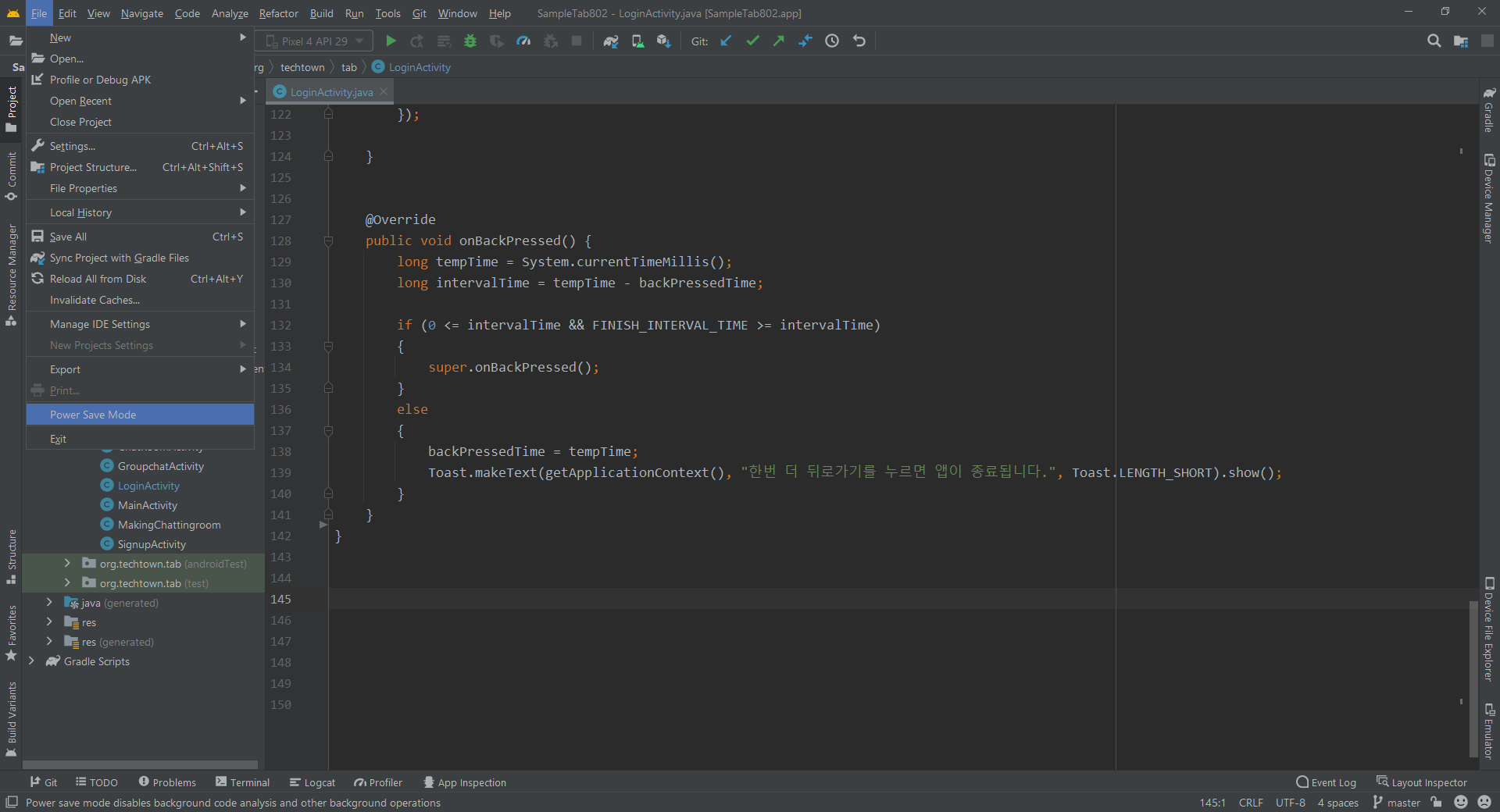
이걸 체크 하면 불편한 점... 코드 입력시 auto coding 을 지원 하지 않는다. 이것이 제일 불편하다고 할 수 있을 것 같다.
반응형
https://medium.com/nybles/sending-push-notifications-by-using-firebase-cloud-messaging-249aa34f4f4c
Sending Push Notifications by Using Firebase Cloud Messaging
Ever wondered how does your smartphone receive and handle notifications whether be in foreground, background or even killed?
medium.com
앱을 만들꺼다... 저번에 하던 geofences 관련된 앱도 만들고 있는 중이고, 진척이 더디다... 그래도 만들꺼다. 이번에는 FCM 을 이용해서 message push 을 해 보고자 한다.
다수의 사용자에게 또는 특정 사용자에게 메시지 전송을 하고 싶다. FCM 의 문서를 읽어보면 서버 구성을 할 수 있으면 좋을 것 같다. 그러나 일반적인 사용자에게는 서버가 있을턱은 없고. 그럼 그냥 앱에서 그것들을 구현해 보는 것이다.
그럼 어떻게 할 것 인가 ?
Firebase Java Server to send push notification to all devices
I am trying to send a Push notification to my android device with the new Firebase service. I registered and setup an app, also I put all the code needed to receive notification in the android app....
stackoverflow.com
어떤 주제를 가지고 공통의견을 가지는 사람들에게 알림을 보내는 방법. 일단 그 방법을 적용해 보기로 했다.
클라이언트 앱에서는 topic 을 2개 수신 등록을 해 두고 서버앱에서는 topic 을 이용해서 클라이언트 앱으로 메시지를 push 해 보는 것이다.
다수의 시간을 소비해 가면서 찾은 것들을 정리해 둠... 이런 저런 검색들 끝에 찾은건... 문서을 잘 읽어 보자. 그리고 서버가 없는 나는 어떻게 할 것 인가 ? 그것에 대한 고민을 해 보자. ㅠㅠ
아래 소스는 오늘 저녁 4시간 가량을 소비해 가면서 구글링 한 결과 얻은 소스을 일부 수정했다. android apps 에서 사용할 수 있도록
저 class 을 따로 하나 만들어서 내가 사용하고 싶은 곳에서 호출해서 사용하면 된다.
import android.content.Context;
import android.content.res.AssetFileDescriptor;
import android.content.res.AssetManager;

import com.google.auth.oauth2.GoogleCredentials;
import com.google.gson.Gson;
import com.google.gson.GsonBuilder;
import com.google.gson.JsonObject;
import java.io.FileInputStream;
import java.io.IOException;
import java.io.InputStream;
import java.io.OutputStreamWriter;
import java.net.HttpURLConnection;
import java.net.URL;
import java.util.Arrays;
import java.util.Scanner;

/**
 * Firebase Cloud Messaging (FCM) can be used to send messages to clients on iOS, Android and Web.
 *
 * This sample uses FCM to send two types of messages to clients that are subscribed to the `news`
 * topic. One type of message is a simple notification message (display message). The other is
 * a notification message (display notification) with platform specific customizations, for example,
 * a badge is added to messages that are sent to iOS devices.
 */
public class Messaging {

    private static final String PROJECT_ID = "my-appl0fb";
    private static final String BASE_URL = "https://fcm.googleapis.com";
    private static final String FCM_SEND_ENDPOINT = "/v1/projects/" + PROJECT_ID + "/messages:send";

    private static final String MESSAGING_SCOPE = "https://www.googleapis.com/auth/firebase.messaging";
    private static final String[] SCOPES = { MESSAGING_SCOPE };

    private static final String TITLE = "FCM Notification";
    private static final String BODY = "Notification from FCM";
    public static final String MESSAGE_KEY = "message";

    public Messaging() {

    }

    /**
     * Retrieve a valid access token that can be use to authorize requests to the FCM REST
     * API.
     *
     * @return Access token.
     * @throws IOException
     */
    // [START retrieve_access_token]
    public String getAccessToken(Context context) throws IOException {

        AssetManager assetManager = context.getAssets();
        AssetFileDescriptor fileDescriptor = assetManager.openFd("my-ap0fb.json");
        FileInputStream fileInputStream = fileDescriptor.createInputStream();

        GoogleCredentials googleCredentials = GoogleCredentials
                .fromStream(fileInputStream)
                .createScoped(Arrays.asList(SCOPES));
        // googleCredentials.refreshAccessToken().getTokenValue();
        return googleCredentials.refreshAccessToken().getTokenValue();
    }
    // [END retrieve_access_token]

    /**
     * Create HttpURLConnection that can be used for both retrieving and publishing.
     *
     * @return Base HttpURLConnection.
     * @throws IOException
     */
    public HttpURLConnection getConnection(Context context) throws IOException {
        // [START use_access_token]
        URL url = new URL(BASE_URL + FCM_SEND_ENDPOINT);
        HttpURLConnection httpURLConnection = (HttpURLConnection) url.openConnection();
        httpURLConnection.setRequestProperty("Authorization", "Bearer " + getAccessToken(context));
        httpURLConnection.setRequestProperty("Content-Type", "application/json; UTF-8");
        return httpURLConnection;
        // [END use_access_token]
    }

    /**
     * Send request to FCM message using HTTP.
     * Encoded with UTF-8 and support special characters.
     *
     * @param fcmMessage Body of the HTTP request.
     * @throws IOException
     */
    public void sendMessage(JsonObject fcmMessage, Context context) throws IOException {
        HttpURLConnection connection = getConnection(context);
        connection.setDoOutput(true);
        OutputStreamWriter writer = new OutputStreamWriter(connection.getOutputStream(), "UTF-8");
        writer.write(fcmMessage.toString());
        writer.flush();
        writer.close();

        int responseCode = connection.getResponseCode();
        if (responseCode == 200) {
            String response = inputstreamToString(connection.getInputStream());
            System.out.println("Message sent to Firebase for delivery, response:");
            System.out.println(response);
        } else {
            System.out.println("Unable to send message to Firebase:");
            String response = inputstreamToString(connection.getErrorStream());
            System.out.println(response);
        }
    }

    /**
     * Send a message that uses the common FCM fields to send a notification message to all
     * platforms. Also platform specific overrides are used to customize how the message is
     * received on Android and iOS.
     *
     * @throws IOException
     */
    public void sendOverrideMessage(Context context) throws IOException {
        JsonObject overrideMessage = buildOverrideMessage();
        System.out.println("FCM request body for override message:");
        prettyPrint(overrideMessage);
        sendMessage(overrideMessage, context);
    }

    /**
     * Build the body of an FCM request. This body defines the common notification object
     * as well as platform specific customizations using the android and apns objects.
     *
     * @return JSON representation of the FCM request body.
     */
    public JsonObject buildOverrideMessage() {
        JsonObject jNotificationMessage = buildNotificationMessage();

        JsonObject messagePayload = jNotificationMessage.get(MESSAGE_KEY).getAsJsonObject();
        messagePayload.add("android", buildAndroidOverridePayload());

        JsonObject apnsPayload = new JsonObject();
        apnsPayload.add("headers", buildApnsHeadersOverridePayload());
        apnsPayload.add("payload", buildApsOverridePayload());

        messagePayload.add("apns", apnsPayload);

        jNotificationMessage.add(MESSAGE_KEY, messagePayload);

        return jNotificationMessage;
    }

    /**
     * Build the android payload that will customize how a message is received on Android.
     *
     * @return android payload of an FCM request.
     */
    public JsonObject buildAndroidOverridePayload() {
        JsonObject androidNotification = new JsonObject();
        androidNotification.addProperty("click_action", "android.intent.action.MAIN");

        JsonObject androidNotificationPayload = new JsonObject();
        androidNotificationPayload.add("notification", androidNotification);

        return androidNotificationPayload;
    }

    /**
     * Build the apns payload that will customize how a message is received on iOS.
     *
     * @return apns payload of an FCM request.
     */
    public JsonObject buildApnsHeadersOverridePayload() {
        JsonObject apnsHeaders = new JsonObject();
        apnsHeaders.addProperty("apns-priority", "10");

        return apnsHeaders;
    }

    /**
     * Build aps payload that will add a badge field to the message being sent to
     * iOS devices.
     *
     * @return JSON object with aps payload defined.
     */
    public JsonObject buildApsOverridePayload() {
        JsonObject badgePayload = new JsonObject();
        badgePayload.addProperty("badge", 1);

        JsonObject apsPayload = new JsonObject();
        apsPayload.add("aps", badgePayload);

        return apsPayload;
    }

    /**
     * Send notification message to FCM for delivery to registered devices.
     *
     * @throws IOException
     */
    public void sendCommonMessage(Context context) throws IOException {
        JsonObject notificationMessage = buildNotificationMessage();
        System.out.println("FCM request body for message using common notification object:");
        prettyPrint(notificationMessage);
        sendMessage(notificationMessage, context);
    }

    /**
     * Construct the body of a notification message request.
     *
     * @return JSON of notification message.
     */
    public JsonObject buildNotificationMessage() {
        JsonObject jNotification = new JsonObject();
        jNotification.addProperty("title", TITLE);
        jNotification.addProperty("body", BODY);

        JsonObject jMessage = new JsonObject();
        jMessage.add("notification", jNotification);
        jMessage.addProperty("topic", "allDevices");

        JsonObject jFcm = new JsonObject();
        jFcm.add(MESSAGE_KEY, jMessage);

        return jFcm;
    }

    /**
     * Read contents of InputStream into String.
     *
     * @param inputStream InputStream to read.
     * @return String containing contents of InputStream.
     * @throws IOException
     */
    public String inputstreamToString(InputStream inputStream) throws IOException {
        StringBuilder stringBuilder = new StringBuilder();
        Scanner scanner = new Scanner(inputStream);
        while (scanner.hasNext()) {
            stringBuilder.append(scanner.nextLine());
        }
        return stringBuilder.toString();
    }

    /**
     * Pretty print a JsonObject.
     *
     * @param jsonObject JsonObject to pretty print.
     */
    public void prettyPrint(JsonObject jsonObject) {
        Gson gson = new GsonBuilder().setPrettyPrinting().create();
        System.out.println(gson.toJson(jsonObject) + "\n");
    }

    /*
    public static void main(String[] args) throws IOException {
        if (args.length == 1 && args[0].equals("common-message")) {
            sendCommonMessage();
        } else if (args.length == 1 && args[0].equals("override-message")) {
            sendOverrideMessage();
        } else {
            System.err.println("Invalid command. Please use one of the following commands:");
            // To send a simple notification message that is sent to all platforms using the common
            // fields.
            System.err.println("./gradlew run -Pmessage=common-message");
            // To send a simple notification message to all platforms using the common fields as well as
            // applying platform specific overrides.
            System.err.println("./gradlew run -Pmessage=override-message");
        }
    }
    */

}
소스의 내용중에 main 함수는 막았다. 왜냐면 android 내에서는 호출할 일이 없으니까. 다만 원래 있던 부분이니 혹시나 서버용으로 구성을 하는 경우 필요할 듯 하여...
이제 앱 수준의 gradle 파일에 추가를 해야 한다.
plugins {
    id 'com.android.application'
    id 'com.google.gms.google-services'
}

android {
    compileSdk 30

    buildFeatures {
        viewBinding true
    }

    packagingOptions {
        exclude 'META-INF/DEPENDENCIES'
        exclude 'META-INF/LICENSE'
        exclude 'META-INF/LICENSE.txt'
        exclude 'META-INF/license.txt'
        exclude 'META-INF/NOTICE'
        exclude 'META-INF/NOTICE.txt'
        exclude 'META-INF/INDEX.LIST'
        exclude 'META-INF/notice.txt'
        exclude 'META-INF/ASL2.0'
    }

    aaptOptions {
        noCompress "json"
    }

}

dependencies {

    implementation 'com.google.auth:google-auth-library-oauth2-http:1.0.0'

    implementation platform('com.google.firebase:firebase-bom:28.2.1')
    implementation 'com.google.firebase:firebase-messaging'
    implementation 'com.google.firebase:firebase-analytics'

}
원래는 다른 것들도 많이 있지만, 이것들은 꼭 필요한 듯 하여...
aaptOptions 는 사용법이 파일 확장자를 등록하는 것인데, assets 폴더에 json 파일을 넣어주고 그걸 읽어오게 하려고 했더니 file not found 오류가 나서 찾다가 압축을 하지 않도록 설정하는 것이란다. 그래야 제대로 파일을 읽어올 수 있다고
그 assets 폴더에 들어가야 하는 파일은 인증을 시도하기 위해서 저장해야 하는 파일인데, 이건 messaging class 에 보면 getAccessToken 함수에서 사용하고 있으니 거길 보시면 되고 거기에 보면 openFd() 에 파일이름이 있는데, 원래 이름은 내려받은 파일 이름으로 작성하시면 됨 이파일은
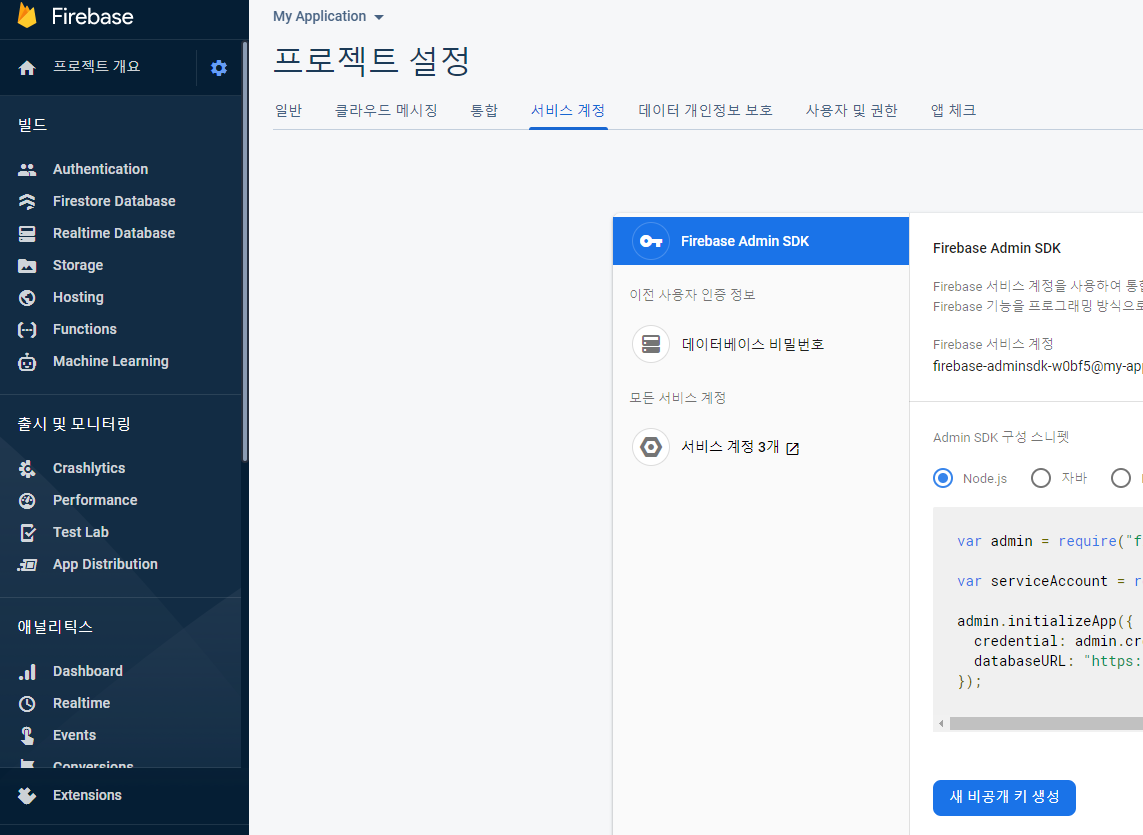
firebase console 에서 해당 프로젝트 설정 의 서비스 계정에 보면 새 비공개 키생성 이라고 있는데, 요기를 클릭하면 내려주는 json 파일인데, 이걸 받아서 이름을 변경하여 저장한 것을 내 프로젝트의 폴더에 담았다.
위치는 아래 그림 처럼 내 프로젝트 app/src/main/assets 폴더에 다가...

이제 준비는 된 것 같으니... MainActivity 에 호출하는 함수를 구현해 본다.
        new Thread() {
            @Override
            public void run() {
                super.run();
                try {

                    Messaging messaging = new Messaging(getApplicationContext());
                    messaging.sendCommonMessage(getApplicationContext());

                } catch (Exception e) {
                    e.printStackTrace();
                }

            }
        }.start();
thread 을 사용하는 건 아시겠지만, android 가 http 통신을 하기 위해서는 비동기식으로 처리를 해야만 오류가 발생하지 않기 때문에 이렇게 처리를 하는 것이다.
혹시나 여기 까지를 했는데, 앱에서 수신을 하지 않는다면... Messaging 소스에서 topic 이라는 단어를 찾어 보시길, 이걸 설정하는 이유는 메시지 수신할 경우를 지정하기 위해서 인데, 앱에서 특정한 방법으로 메시지를 전송하려면 구현을 이런 방식으로 해 두는 것이 좋을 것 같기도 하고. 암튼 저 메시지가 수신되는 것으로 확인하고 싶으면 topic 을 먼저 구독 독 하도록 설정해야 하는데, 그건
        FirebaseMessaging.getInstance().subscribeToTopic("allDevices")
                .addOnCompleteListener(new OnCompleteListener<Void>() {
                    @Override
                    public void onComplete(@NonNull Task<Void> task) {
                        Log.e(TAG, "allDevices subscribed ..." );
                    }
                });
MainActivity 의 onCreate 어딘가 쯤 위 코드를 넣어주면 앱이 시작 되면서 구독할 준비가 된다.
앱에서 메시지 수신에 대한 설명은 문서를 참조하여 작성하시길. 그건 아래 링크를 참조하시도록 남겨 놓는다.
https://firebase.google.com/docs/cloud-messaging/android/receive?authuser=0
Android 앱에서 메시지 수신 | Firebase
Firebase 알림의 동작은 수신하는 앱의 포그라운드/백그라운드 상태에 따라 달라집니다. 포그라운드 상태인 앱에서 알림 메시지 또는 데이터 메시지를 수신하려면 onMessageReceived 콜백을 처리하는
firebase.google.com
FCM 의 수신을 하는 경우 봐 두어야 하는 부분이 앱이 backgound 상태인 경우와 foreground 상태 메시지가 도달 했을 때 처리 되는 기준이 좀 다르다는 것을 알게 되었다. 위 링크에서 일부 설명은 되어 있지만 친절하게 설명이 되어 있지 않기 때문에 조금 준비를 하는 데 시간이 좀 필요하게 되었다.
먼저 foreground 에서 수신 하는 경우에는 위 문서에서도 설명하고 있는 FirebaseMessagingService 에 onMessageReceived 을 통해 수신 되는 메시지를 이용해서 바로 보여 줄 수 있도록 구현을 하면 되었고,
@Override
    public void onMessageReceived(RemoteMessage remoteMessage) {

        // TODO(developer): Handle FCM messages here.
        // Not getting messages here? See why this may be: https://goo.gl/39bRNJ
        Log.e(TAG, "From: " + remoteMessage.getFrom());

        // Check if message contains a data payload.
        if (remoteMessage.getData().size() > 0) {
            Log.e(TAG, "Message data payload: " + remoteMessage.getData());

            sp = getSharedPreferences(getPackageName(), MODE_PRIVATE);
            editor = sp.edit() ;

            Map<String, String> strMap = remoteMessage.getData();
            Log.e(TAG, "URL=" + strMap.get("URL"));
            Log.e(TAG, "BODY=" + strMap.get("BODY"));

            editor.putString("URL", strMap.get("URL").contains("http") ? strMap.get("URL") : "https://" + strMap.get("URL"));
            editor.putString("BODY", strMap.get("BODY"));
            editor.putBoolean("FcmTy", true) ;
            editor.commit();

            handleNow();

        }

        // Check if message contains a notification payload.
        if (remoteMessage.getNotification() != null) {
            Log.e(TAG, "Message Notification Body: " + remoteMessage.getNotification().getBody());
            sendNotification(remoteMessage.getNotification().getBody()) ;
        }

        onDeletedMessages();
    }

    private void handleNow() {

        Log.d(TAG, "Short lived task is done.");
        Intent intent = new Intent(FcmReceiveService.this, ViewActivity.class);
        intent.addFlags(Intent.FLAG_ACTIVITY_NEW_TASK);
        startActivity(intent);

    }
background 상태일 때는 앱의 시스템 알림으로 notify 을 하게 되는데, FirebaseMessagingService 에서는 아래 코드 처럼 notification 을 구현하게 되어 시스템 알림이 뜨게 된다 이 떄 알림을 클릭하면
private void sendNotification(String messageBody) {
        Intent intent = new Intent(this, MainActivity.class);
        intent.addFlags(Intent.FLAG_ACTIVITY_CLEAR_TOP);
        PendingIntent pendingIntent = PendingIntent.getActivity(this, 0 /* Request code */, intent,
                PendingIntent.FLAG_ONE_SHOT);

        NotificationManager notificationManager =
                (NotificationManager) getSystemService(Context.NOTIFICATION_SERVICE);

        String channelId = getString(R.string.default_notification_channel_id);
        CharSequence channelName = getString(R.string.default_notification_channel_name);
        int importance = NotificationManager.IMPORTANCE_LOW;
        NotificationChannel notificationChannel = new NotificationChannel(channelId, channelName, importance);
        notificationChannel.enableLights(true);
        notificationChannel.setLightColor(Color.BLUE);
        notificationChannel.enableVibration(true);
        notificationChannel.setVibrationPattern(new long[]{100, 200, 300, 400, 500, 400, 300, 200, 400});
        notificationManager.createNotificationChannel(notificationChannel);

        Uri defaultSoundUri = RingtoneManager.getDefaultUri(RingtoneManager.TYPE_NOTIFICATION);
        NotificationCompat.Builder notificationBuilder =
                new NotificationCompat.Builder(this, channelId)
                        .setSmallIcon(R.drawable.ic_launcher_foreground)
                        .setContentTitle(getString(R.string.fcm_message))
                        .setContentText(messageBody)
                        .setAutoCancel(true)
                        .setSound(defaultSoundUri)
                        .setContentIntent(pendingIntent);

        // Since android Oreo notification channel is needed.
        if (Build.VERSION.SDK_INT >= Build.VERSION_CODES.O) {
            NotificationChannel channel = new NotificationChannel(channelId,
                    "Channel human readable title",
                    NotificationManager.IMPORTANCE_DEFAULT);
            notificationManager.createNotificationChannel(channel);
        }

        notificationManager.notify(0 /* ID of notification */, notificationBuilder.build());
    }
문서에 기술된 것 처럼 LAUNCHER activity 를 호출 하도록 되어 있다.
백그라운드 앱에서 알림 메시지 처리
앱이 백그라운드 상태이면 Android에서 알림 메시지를 작업 표시줄로 전송합니다. 사용자가 알림을 탭하면 기본적으로 앱 런처가 열립니다.

여기에는 알림과 데이터 페이로드가 모두 들어 있는 메시지 및 알림 콘솔에서 보낸 모든 메시지가 포함됩니다. 이러한 경우 알림은 기기의 작업 표시줄로 전송되고 데이터 페이로드는 런처 활동의 인텐트 부가 정보로 전송됩니다.

앱으로 전송된 메시지의 통계를 파악하려면, iOS 및 Android 기기에서 열린 전송 메시지 수와 Android 앱의 '노출수'(사용자에게 표시된 알림) 데이터가 기록된 FCM 보고 대시보드를 확인합니다.
그래서 Launcher 로 등록된 MainAcitivity 가 실행 될 때 받아온 수신 문구를 처리하도록 구성해 주어야 한다.
    @Override
    protected void onStart() {
        super.onStart();

        Log.e(TAG, "onStart") ;

        if (getIntent().getExtras() != null && !sp.getBoolean("FcmTy", false)) {
            Bundle bundle = getIntent().getExtras();
            Log.e(TAG, "URL=" + bundle.getString("URL"));
            Log.e(TAG, "BODY=" + bundle.getString("BODY"));
            editor.putString("URL", bundle.getString("URL").contains("http") ? bundle.getString("URL") : "https://" + bundle.getString("URL"));
            editor.putString("BODY", bundle.getString("BODY"));
            editor.putBoolean("FcmTy", true) ;
            editor.commit();
            Intent intent1 = new Intent(this, ViewActivity.class);
            startActivity(intent1);
            finish();
        }
    }
onCreate 에 하지 않고 onStart 에서 처리 하는 것은 아무래도 activity 의 lifecycle 에 따른 조치라고 볼 수 있을 것 같다.
그럼... 오늘도 즐~
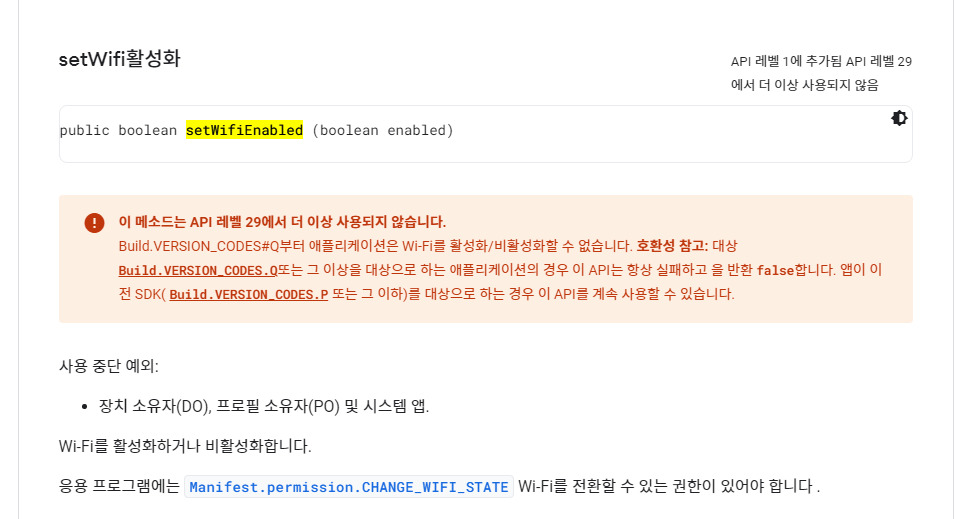
앱을 하나 만들고 있다. geoFences 을 이용해서 내가 지금 어디에 있는가를 보고 자동으로 설정을 하거나 알림을 하는 앱을 ... 그런데, 난관(?)이 하나 생겼다. 집을 나오면 wifi을 끄고, 다시 집에 오면 wifi 을 자동으로 켜는 기능을 넣고 싶었는데, 내가 지금 쓰는 폰이 API가 29 (Android 10) 이상이라는 상황 때문에 wifimanager 의 기능중에 setWifiEnabled 을 사용할 수 없다는 것이다.
흑~ 다른 대안은 뭐가 있는가 ? 아직은 찾일을 수 없었다.
혹시나 찾게 되면 다음에 다시 적어 보도록 하겠다.
 View rootView = LayoutInflater.from(context).inflate(R.layout.row_timeline, null, false);
        RecyclerView.LayoutParams lp = new RecyclerView.LayoutParams(ViewGroup.LayoutParams.MATCH_PARENT, ViewGroup.LayoutParams.WRAP_CONTENT);
        rootView.setLayoutParams(lp);
        return new TimeLineViewHolder(rootView, viewType);
앱을 구현하다 보면 리스트를 목록 형태로 보여 주어야 하는 경우가 왕왕 발생 하게 된다. 이런 경우 주로 사용하는것이 예전에는 listview 을 많이 사용했는데, 이제는 recycleview 을 권장하는 시기가 되어 가는 것 같다. 나만의 생각일까 ?
뭐 암튼 recycleview 을 이용한 앱을 구현하는 동안 혼돈이 되었던 부분에 대한 기술을 해 두고자 한다. 먼저 recycleview 을 화면에 넣고 실행 했더니만... layout 의 match_parent 가 적용 되지 않는다. 왜 ???
https://stackoverflow.com/questions/30691150/match-parent-width-does-not-work-in-recyclerview
match_parent width does not work in RecyclerView
My RecyclerView and item has match_parent width but the result is :
stackoverflow.com
잘 알 수는 없는 노릇이기는 하나, 아래 코드를 유의해서 보시길...
 View rootView = LayoutInflater.from(context).inflate(R.layout.row_timeline, null, false);
        RecyclerView.LayoutParams lp = new RecyclerView.LayoutParams(ViewGroup.LayoutParams.MATCH_PARENT, ViewGroup.LayoutParams.WRAP_CONTENT);
        rootView.setLayoutParams(lp);
        return new TimeLineViewHolder(rootView, viewType);
recycleview 에 setLayoutParams 을 이용해서 파라미터를 전달하는 방식으로 witdh 을 match_parent 을 적용하였다. 그러면 끝.
다음은, adapter 까지 잘 구현했나 싶은데... 화면에 아무것도 나오지 않는다.
https://recipes4dev.tistory.com/154
안드로이드 리사이클러뷰 기본 사용법. (Android RecyclerView)
1. 안드로이드 리사이클러뷰(RecyclerView) 리사이클러뷰(RecyclerView)는, "많은 수의 데이터 집합을, 제한된 영역 내에서 유연하게(flexible) 표시할 수 있도록 만들어주는 위젯"입니다. [안드로이드 개발
recipes4dev.tistory.com
listview 을 사용할 때는 고민하지 않았던 문제인데,
        RecyclerView recyclerView = findViewById(R.id.recycler1) ;
        recyclerView.setLayoutManager(new LinearLayoutManager(this)) ;
layoutManager 는 왜 지정해야 하는 가? 하는 의문이 들기는 하지만, layoutManager 설정이 되어 있지 않으면, 화면에 표시가 되지 않는다. java 에서 지정할 때는 위의 코드처럼 구현 하면 되고, layout 에서 지정할 수도 있으니 참고하시길.
listview 에서는 이름처럼 list 모양으로만 view 을 구현할 수 있지만, recycleview 의 경우는 layoutmanager 을 이용해서 다양한 모양의 view 을 구성해 줄 수 있기 때문에 layoutmanager 을 설정해 주어야 했다.
https://developer.android.com/guide/topics/ui/layout/recyclerview-custom
RecyclerView 맞춤설정 | Android 개발자 | Android Developers
RecyclerView의 고급 맞춤설정 옵션
developer.android.com
또한 아래 예제에서 보여 주고 있는 것 처럼 adapter 을 구현하는 소스의 모양도 조금 다르니 구조를 보고 이해를 해 두는 것이 좋을 것 같다. listview 을 활용하는 경우의 adapter 구현을 모양과 비교를 해 보면 거의 비슷해 보이기는 하나, ViewHolder 을 기본으로 구현해 주고 있으니 잘 활용할 수 있으면 좋을 것 같다. ViewHolder 을 구현하는 이유는 자원 재활용에 도움이 된다고 했던 것으로 본 기억이 있다. list 가 스크롤 되면서 화면 밖으로 넘어가면 없어지고 그 자리를 다른 데이터로 채우는 모양으로 자원을 재활용 한다는 설명을 어딘가에서 보았던 기억이 난다.
public class SimpleTextAdapter extends RecyclerView.Adapter<SimpleTextAdapter.ViewHolder> {

    private ArrayList<String> mData = null ;

    // 아이템 뷰를 저장하는 뷰홀더 클래스.
    public class ViewHolder extends RecyclerView.ViewHolder {
        TextView textView1 ;

        ViewHolder(View itemView) {
            super(itemView) ;

            // 뷰 객체에 대한 참조. (hold strong reference)
            textView1 = itemView.findViewById(R.id.text1) ;
        }
    }

    // 생성자에서 데이터 리스트 객체를 전달받음.
    public SimpleTextAdapter(ArrayList<String> list) {
        mData = list ;
    }

    // onCreateViewHolder() - 아이템 뷰를 위한 뷰홀더 객체 생성하여 리턴.
    @Override
    public SimpleTextAdapter.ViewHolder onCreateViewHolder(ViewGroup parent, int viewType) {
        Context context = parent.getContext() ;
        LayoutInflater inflater = (LayoutInflater) context.getSystemService(Context.LAYOUT_INFLATER_SERVICE) ;

        View view = inflater.inflate(R.layout.recyclerview_item, parent, false) ;
        SimpleTextAdapter.ViewHolder vh = new SimpleTextAdapter.ViewHolder(view) ;

        return vh ;
    }

    // onBindViewHolder() - position에 해당하는 데이터를 뷰홀더의 아이템뷰에 표시.
    @Override
    public void onBindViewHolder(SimpleTextAdapter.ViewHolder holder, int position) {
        String text = mData.get(position) ;
        holder.textView1.setText(text) ;
    }

    // getItemCount() - 전체 데이터 갯수 리턴.
    @Override
    public int getItemCount() {
        return mData.size() ;
    }
}
이번에는 listview 을 지원하는 adapter 의 모양은 아래와 같다.
import android.content.Context;
import android.view.LayoutInflater;
import android.view.View;
import android.view.ViewGroup;
import android.widget.BaseAdapter;
import android.widget.TextView;

import org.techtown.tab.databinding.ItemChattingListBinding;
import org.techtown.tab.model.ChatRooms;

import java.util.ArrayList;

public class ChatRoomAdapter extends BaseAdapter {

    ItemChattingListBinding binding ;
    ArrayList<ChatRooms> chattingListArrayList ;
    Context context ;
    LayoutInflater inflater;
    int nListCnt ;

    public ChatRoomAdapter(ArrayList<ChatRooms> oData, Context context) {
        this.chattingListArrayList = oData ;
        this.context = context ;
        this.inflater = (LayoutInflater) context.getSystemService(Context.LAYOUT_INFLATER_SERVICE);
    }

    @Override
    public int getCount() {
        return chattingListArrayList.size();
    }

    @Override
    public ChatRooms getItem(int position) {
        return chattingListArrayList.get(position);
    }

    @Override
    public long getItemId(int position) {
        return position;
    }

    public void updateReceiptsList(ArrayList<ChatRooms> _oData) {
        chattingListArrayList = _oData;
        nListCnt = chattingListArrayList.size(); // 배열 사이즈 다시 확인
        this.notifyDataSetChanged(); // 그냥 여기서 하자
    }

    @Override
    public View getView(int position, View convertView, ViewGroup parent) {
        binding = ItemChattingListBinding.inflate(inflater);
        CustomViewHolder holder ;
        if (convertView == null) {
            convertView = binding.getRoot();
            holder = new CustomViewHolder();
            holder.board = binding.boardingLocation2 ;
            holder.dest = binding.destination2;
            holder.chatMember = binding.boardingPeopleNum2;
            convertView.setTag(holder);
        } else {
            holder = (CustomViewHolder) convertView.getTag();
        }
        String strDest = chattingListArrayList.get(position).getDestination2() ;
        holder.board.setText(chattingListArrayList.get(position).getBoardingLocation2());
        holder.dest.setText(strDest);
        holder.chatMember.setText("" + chattingListArrayList.get(position).getBoardingPeopleNum2());
        return convertView;
    }

    private class CustomViewHolder {
        TextView dest ;
        TextView board ;
        TextView chatMember ;
    }
}
listview 을 이용하는 경우에도 viewHolder 을 사용하여 데이터를 저장하는 것이 listview 을 상하 스크롤를 하더라도 데이터가 없어지는 현상을 방지할 수 있었다.
오늘도 즐~
Button crashButton = new Button(this);
crashButton.setText("Test Crash");
crashButton.setOnClickListener(new View.OnClickListener() {
   public void onClick(View view) {
       throw new RuntimeException("Test Crash"); // Force a crash
   }
});

addContentView(crashButton, new ViewGroup.LayoutParams(
       ViewGroup.LayoutParams.MATCH_PARENT,
       ViewGroup.LayoutParams.WRAP_CONTENT));
이건 뭐할 떄 쓰면 좋은가 하는 생각이 든다. 앱을 만들고 나서 누군가에게 전달을 했는데, 그 앱에서 에러가 난다고 한다. 흐미... 내가 테스트 할 때는 문제가 없었던 것 같은데 ...
그래서 이런 저런 방법을 찾아보던 중에 오호라... 이런 것도 있네... 각설하고... 일단 개발자 가이드를 읽어보자. 불행하게도 지금(2021.08.07일)까지는 한글로 된 문서가 안드로이드에 적합하게 되어 있지 않은 것 같다. 어쩔 수 없어 영문 사이트를 보면서 따라하기...(크롬의 자동번역기능을 이용해서)
https://firebase.google.com/docs/crashlytics/get-started?hl=en&platform=android
Firebase Crashlytics 시작하기
iOS Android Unity 이 빠른 시작에서는 Firebase Crashlytics SDK를 사용해 앱에 Firebase Crashlytics를 설정하여 Firebase Console에서 포괄적인 비정상 종료 보고서를 확인하는 방법을 설명합니다. 시작하기 전에 아
firebase.google.com
https://firebase.google.com/docs/crashlytics/get-started?platform=Android
Firebase Crashlytics 시작하기
iOS Android Unity 이 빠른 시작에서는 Firebase Crashlytics SDK를 사용해 앱에 Firebase Crashlytics를 설정하여 Firebase Console에서 포괄적인 비정상 종료 보고서를 확인하는 방법을 설명합니다. 시작하기 전에 아
firebase.google.com
내용은 같은 내용이지만, 아래 링크는 안드로이드에 대한 설며이 없고, 위에 링크는 설명은 있지만, 영문 페이지이고, 한글은 지원 하지 않는다. 아직 한글 사용자가 많지 않아서 인지... 흠흠흠...
뭐 하여간 크롬이 지원하는 자동번역기능을 이용해서 살펴보면...
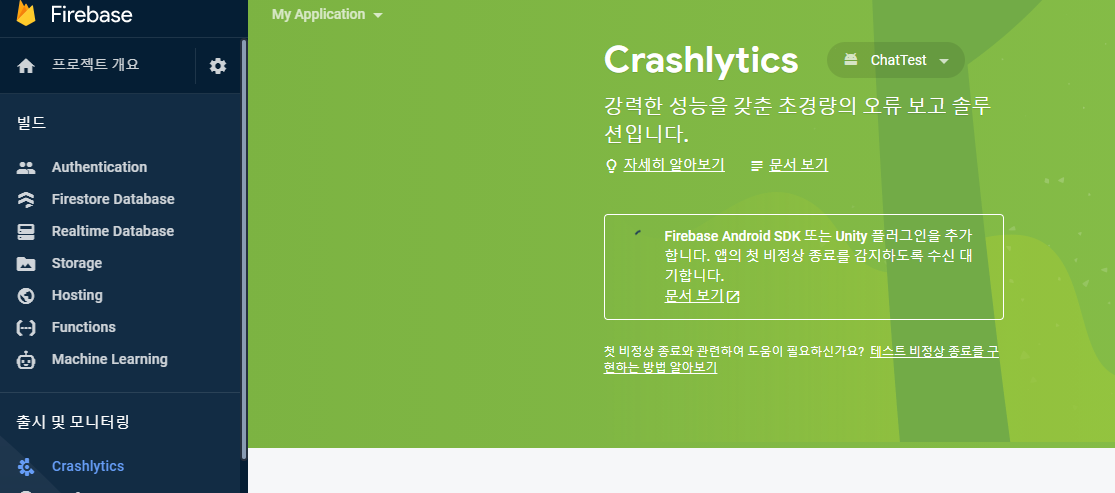
위 그림 처럼 firebase console 에서 Crashlytics 을 들어가 보면 모래시계가 나오고 계속해서 기다린다고 되어 있다. 그래서 설명을 읽고 Crashlytics 을 활성화 하고 그 다음 할일은 gradle 을 수정하는 것이다...
먼저 project 의 gradle 파일에 아래 classpath 을 추가한다.
    dependencies {
        ...

        // Add the Crashlytics Gradle plugin
        classpath 'com.google.firebase:firebase-crashlytics-gradle:2.7.1'
    }
}
다음은 apps 의 gradle 파일에 추가한다.
apply plugin: 'com.google.firebase.crashlytics'

...


dependencies {
    // Import the BoM for the Firebase platform
    implementation platform('com.google.firebase:firebase-bom:28.3.0')

    // Declare the dependencies for the Crashlytics and Analytics libraries
    // When using the BoM, you don't specify versions in Firebase library dependencies
    implementation 'com.google.firebase:firebase-crashlytics'
    implementation 'com.google.firebase:firebase-analytics'
}
그리고 나서 gradle 파일에서 sync 을 눌러서 필요한 파일들을 준비하고 나면 그다음은 마지막으로 MainActivity 에 아래 코드를 넣고 실행을 한번 하는 것이다.
Button crashButton = new Button(this);
crashButton.setText("Test Crash");
crashButton.setOnClickListener(new View.OnClickListener() {
   public void onClick(View view) {
       throw new RuntimeException("Test Crash"); // Force a crash
   }
});

addContentView(crashButton, new ViewGroup.LayoutParams(
       ViewGroup.LayoutParams.MATCH_PARENT,
       ViewGroup.LayoutParams.WRAP_CONTENT));
이 코드는 고민할 것도 없다. MainActivity 의 onCreate 에 넣고 실행하면 화면에 내가 design 하지 않은 버튼이 하나 나온다. Test Crash 라고 ... 그럼 그냥 한번 눌러주면 Firebase 의 console 화면이 변한다.. 아래 그림 처럼
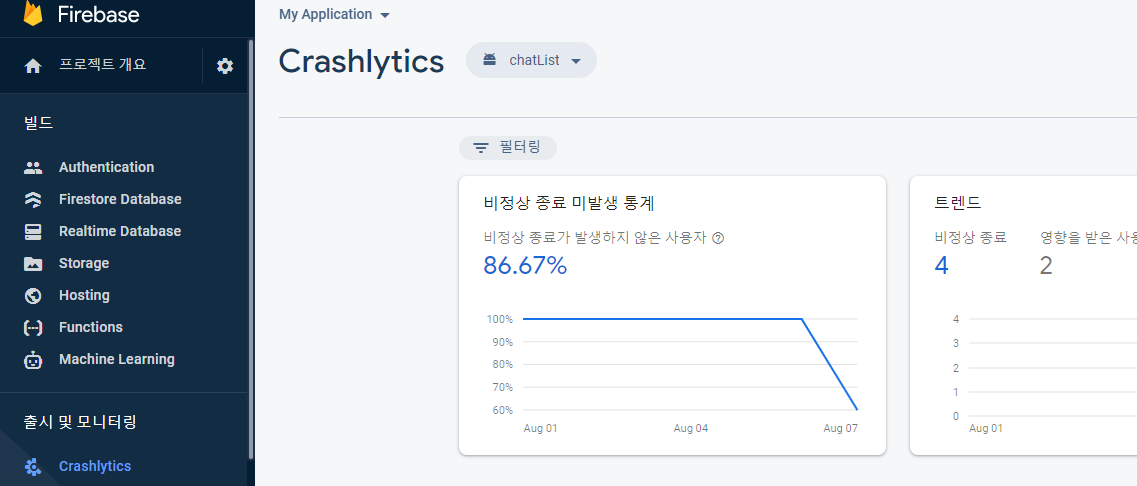
그러면 이제 준비가 끝난 것이다. 그럼 이제 MainActivity 에 넣어던 위에 Test Crase 버튼은 필요가 없다. comment 처리를 하고 내가 만든 앱을 실행해 보는 것이다. 그러면 혹시나 모르는 오류가 발생했을 떄, console 에서 리스트를 확인해 볼 수 있다. 원격지에 있는 사람이 사용하다가 오류를 발생시키더라도 그의 폰에서 로그를 받아올 필요가 없어지는 것이다.
오호~ 이제 debug 는 끝났다.
오늘은 barcode 인식을 이용한 앱 구현에 대한 정리를 해 볼까 한다. 이 기능 구현의 시작은 어느 티비에서 방송했던, 어쩌다 사장 이라는 방송에서 출연진들이 원래 가게 주인이 적어든 가격표를 찾아가면서 판매를 하는 것을 보고, 단순한 바...