#billcorea #운동동아리관리앱 🏸 Schneedle, badminton kulüplerinin olmazsa olmaz uygulaması! 👉 Maç Oyunu - Skorları Kaydedin ve Rakipleri Bulun 🎉 Tek başınıza, arkadaşlarınızla veya bir kulüpte her yerde mükemmel! 🤝 Badmintonu seviyorsanız mutlaka deneyin
/** * Firebase Cloud Messaging (FCM) can be used to send messages to clients on iOS, Android and Web. * * This sample uses FCM to send two types of messages to clients that are subscribed to the `news` * topic. One type of message is a simple notification message (display message). The other is * a notification message (display notification) with platform specific customizations, for example, * a badge is added to messages that are sent to iOS devices. */ public class Messaging {
private static final String PROJECT_ID = "my-appl0fb"; private static final String BASE_URL = "https://fcm.googleapis.com"; private static final String FCM_SEND_ENDPOINT = "/v1/projects/" + PROJECT_ID + "/messages:send";
private static final String MESSAGING_SCOPE = "https://www.googleapis.com/auth/firebase.messaging"; private static final String[] SCOPES = { MESSAGING_SCOPE };
private static final String TITLE = "FCM Notification"; private static final String BODY = "Notification from FCM"; public static final String MESSAGE_KEY = "message";
public Messaging() {
}
/** * Retrieve a valid access token that can be use to authorize requests to the FCM REST * API. * * @return Access token. * @throws IOException */ // [START retrieve_access_token] public String getAccessToken(Context context) throws IOException {
/** * Create HttpURLConnection that can be used for both retrieving and publishing. * * @return Base HttpURLConnection. * @throws IOException */ public HttpURLConnection getConnection(Context context) throws IOException { // [START use_access_token] URL url = new URL(BASE_URL + FCM_SEND_ENDPOINT); HttpURLConnection httpURLConnection = (HttpURLConnection) url.openConnection(); httpURLConnection.setRequestProperty("Authorization", "Bearer " + getAccessToken(context)); httpURLConnection.setRequestProperty("Content-Type", "application/json; UTF-8"); return httpURLConnection; // [END use_access_token] }
/** * Send request to FCM message using HTTP. * Encoded with UTF-8 and support special characters. * * @param fcmMessage Body of the HTTP request. * @throws IOException */ public void sendMessage(JsonObject fcmMessage, Context context) throws IOException { HttpURLConnection connection = getConnection(context); connection.setDoOutput(true); OutputStreamWriter writer = new OutputStreamWriter(connection.getOutputStream(), "UTF-8"); writer.write(fcmMessage.toString()); writer.flush(); writer.close();
int responseCode = connection.getResponseCode(); if (responseCode == 200) { String response = inputstreamToString(connection.getInputStream()); System.out.println("Message sent to Firebase for delivery, response:"); System.out.println(response); } else { System.out.println("Unable to send message to Firebase:"); String response = inputstreamToString(connection.getErrorStream()); System.out.println(response); } }
/** * Send a message that uses the common FCM fields to send a notification message to all * platforms. Also platform specific overrides are used to customize how the message is * received on Android and iOS. * * @throws IOException */ public void sendOverrideMessage(Context context) throws IOException { JsonObject overrideMessage = buildOverrideMessage(); System.out.println("FCM request body for override message:"); prettyPrint(overrideMessage); sendMessage(overrideMessage, context); }
/** * Build the body of an FCM request. This body defines the common notification object * as well as platform specific customizations using the android and apns objects. * * @return JSON representation of the FCM request body. */ public JsonObject buildOverrideMessage() { JsonObject jNotificationMessage = buildNotificationMessage();
/** * Build the android payload that will customize how a message is received on Android. * * @return android payload of an FCM request. */ public JsonObject buildAndroidOverridePayload() { JsonObject androidNotification = new JsonObject(); androidNotification.addProperty("click_action", "android.intent.action.MAIN");
JsonObject androidNotificationPayload = new JsonObject(); androidNotificationPayload.add("notification", androidNotification);
return androidNotificationPayload; }
/** * Build the apns payload that will customize how a message is received on iOS. * * @return apns payload of an FCM request. */ public JsonObject buildApnsHeadersOverridePayload() { JsonObject apnsHeaders = new JsonObject(); apnsHeaders.addProperty("apns-priority", "10");
return apnsHeaders; }
/** * Build aps payload that will add a badge field to the message being sent to * iOS devices. * * @return JSON object with aps payload defined. */ public JsonObject buildApsOverridePayload() { JsonObject badgePayload = new JsonObject(); badgePayload.addProperty("badge", 1);
JsonObject apsPayload = new JsonObject(); apsPayload.add("aps", badgePayload);
return apsPayload; }
/** * Send notification message to FCM for delivery to registered devices. * * @throws IOException */ public void sendCommonMessage(Context context) throws IOException { JsonObject notificationMessage = buildNotificationMessage(); System.out.println("FCM request body for message using common notification object:"); prettyPrint(notificationMessage); sendMessage(notificationMessage, context); }
/** * Construct the body of a notification message request. * * @return JSON of notification message. */ public JsonObject buildNotificationMessage() { JsonObject jNotification = new JsonObject(); jNotification.addProperty("title", TITLE); jNotification.addProperty("body", BODY);
JsonObject jMessage = new JsonObject(); jMessage.add("notification", jNotification); jMessage.addProperty("topic", "allDevices");
JsonObject jFcm = new JsonObject(); jFcm.add(MESSAGE_KEY, jMessage);
return jFcm; }
/** * Read contents of InputStream into String. * * @param inputStream InputStream to read. * @return String containing contents of InputStream. * @throws IOException */ public String inputstreamToString(InputStream inputStream) throws IOException { StringBuilder stringBuilder = new StringBuilder(); Scanner scanner = new Scanner(inputStream); while (scanner.hasNext()) { stringBuilder.append(scanner.nextLine()); } return stringBuilder.toString(); }
/** * Pretty print a JsonObject. * * @param jsonObject JsonObject to pretty print. */ public void prettyPrint(JsonObject jsonObject) { Gson gson = new GsonBuilder().setPrettyPrinting().create(); System.out.println(gson.toJson(jsonObject) + "\n"); }
/* public static void main(String[] args) throws IOException { if (args.length == 1 && args[0].equals("common-message")) { sendCommonMessage(); } else if (args.length == 1 && args[0].equals("override-message")) { sendOverrideMessage(); } else { System.err.println("Invalid command. Please use one of the following commands:"); // To send a simple notification message that is sent to all platforms using the common // fields. System.err.println("./gradlew run -Pmessage=common-message"); // To send a simple notification message to all platforms using the common fields as well as // applying platform specific overrides. System.err.println("./gradlew run -Pmessage=override-message"); } } */
}
소스의 내용중에 main 함수는 막았다. 왜냐면 android 내에서는 호출할 일이 없으니까. 다만 원래 있던 부분이니 혹시나 서버용으로 구성을 하는 경우 필요할 듯 하여...
이제 앱 수준의 gradle 파일에 추가를 해야 한다.
plugins { id 'com.android.application' id 'com.google.gms.google-services' }
aaptOptions 는 사용법이 파일 확장자를 등록하는 것인데, assets 폴더에 json 파일을 넣어주고 그걸 읽어오게 하려고 했더니 file not found 오류가 나서 찾다가 압축을 하지 않도록 설정하는 것이란다. 그래야 제대로 파일을 읽어올 수 있다고
그 assets 폴더에 들어가야 하는 파일은 인증을 시도하기 위해서 저장해야 하는 파일인데, 이건 messaging class 에 보면 getAccessToken 함수에서 사용하고 있으니 거길 보시면 되고 거기에 보면 openFd() 에 파일이름이 있는데, 원래 이름은 내려받은 파일 이름으로 작성하시면 됨 이파일은
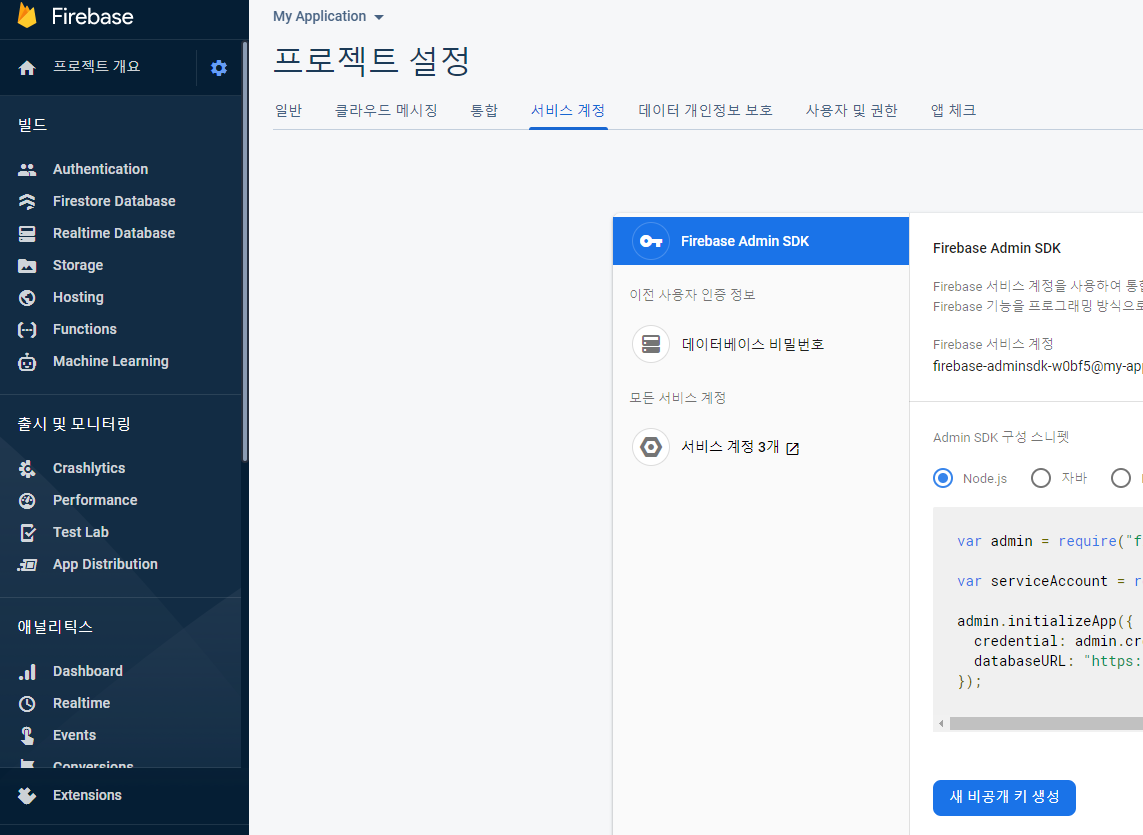
firebase console 에서 해당 프로젝트 설정 의 서비스 계정에 보면 새 비공개 키생성 이라고 있는데, 요기를 클릭하면 내려주는 json 파일인데, 이걸 받아서 이름을 변경하여 저장한 것을 내 프로젝트의 폴더에 담았다.
위치는 아래 그림 처럼 내 프로젝트 app/src/main/assets 폴더에 다가...
이제 준비는 된 것 같으니... MainActivity 에 호출하는 함수를 구현해 본다.
        new Thread() {
            @Override
            public void run() {
                super.run();
                try {

                    Messaging messaging = new Messaging(getApplicationContext());
                    messaging.sendCommonMessage(getApplicationContext());

                } catch (Exception e) {
                    e.printStackTrace();
                }

            }
        }.start();
thread 을 사용하는 건 아시겠지만, android 가 http 통신을 하기 위해서는 비동기식으로 처리를 해야만 오류가 발생하지 않기 때문에 이렇게 처리를 하는 것이다.
혹시나 여기 까지를 했는데, 앱에서 수신을 하지 않는다면... Messaging 소스에서 topic 이라는 단어를 찾어 보시길, 이걸 설정하는 이유는 메시지 수신할 경우를 지정하기 위해서 인데, 앱에서 특정한 방법으로 메시지를 전송하려면 구현을 이런 방식으로 해 두는 것이 좋을 것 같기도 하고. 암튼 저 메시지가 수신되는 것으로 확인하고 싶으면 topic 을 먼저 구독 독 하도록 설정해야 하는데, 그건
FCM 의 수신을 하는 경우 봐 두어야 하는 부분이 앱이 backgound 상태인 경우와 foreground 상태 메시지가 도달 했을 때 처리 되는 기준이 좀 다르다는 것을 알게 되었다. 위 링크에서 일부 설명은 되어 있지만 친절하게 설명이 되어 있지 않기 때문에 조금 준비를 하는 데 시간이 좀 필요하게 되었다.
먼저 foreground 에서 수신 하는 경우에는 위 문서에서도 설명하고 있는 FirebaseMessagingService 에 onMessageReceived 을 통해 수신 되는 메시지를 이용해서 바로 보여 줄 수 있도록 구현을 하면 되었고,
@Override public void onMessageReceived(RemoteMessage remoteMessage) {
// TODO(developer): Handle FCM messages here. // Not getting messages here? See why this may be: https://goo.gl/39bRNJ Log.e(TAG, "From: " + remoteMessage.getFrom());
// Check if message contains a data payload. if (remoteMessage.getData().size() > 0) { Log.e(TAG, "Message data payload: " + remoteMessage.getData());
Uri defaultSoundUri = RingtoneManager.getDefaultUri(RingtoneManager.TYPE_NOTIFICATION); NotificationCompat.Builder notificationBuilder = new NotificationCompat.Builder(this, channelId) .setSmallIcon(R.drawable.ic_launcher_foreground) .setContentTitle(getString(R.string.fcm_message)) .setContentText(messageBody) .setAutoCancel(true) .setSound(defaultSoundUri) .setContentIntent(pendingIntent);
// Since android Oreo notification channel is needed. if (Build.VERSION.SDK_INT >= Build.VERSION_CODES.O) { NotificationChannel channel = new NotificationChannel(channelId, "Channel human readable title", NotificationManager.IMPORTANCE_DEFAULT); notificationManager.createNotificationChannel(channel); }
notificationManager.notify(0 /* ID of notification */, notificationBuilder.build()); }
문서에 기술된 것 처럼 LAUNCHER activity 를 호출 하도록 되어 있다.
백그라운드 앱에서 알림 메시지 처리
앱이 백그라운드 상태이면 Android에서 알림 메시지를 작업 표시줄로 전송합니다. 사용자가 알림을 탭하면 기본적으로 앱 런처가 열립니다.

여기에는 알림과 데이터 페이로드가 모두 들어 있는 메시지 및 알림 콘솔에서 보낸 모든 메시지가 포함됩니다. 이러한 경우 알림은 기기의 작업 표시줄로 전송되고 데이터 페이로드는 런처 활동의 인텐트 부가 정보로 전송됩니다.

앱으로 전송된 메시지의 통계를 파악하려면, iOS 및 Android 기기에서 열린 전송 메시지 수와 Android 앱의 '노출수'(사용자에게 표시된 알림) 데이터가 기록된 FCM 보고 대시보드를 확인합니다.
그래서 Launcher 로 등록된 MainAcitivity 가 실행 될 때 받아온 수신 문구를 처리하도록 구성해 주어야 한다.
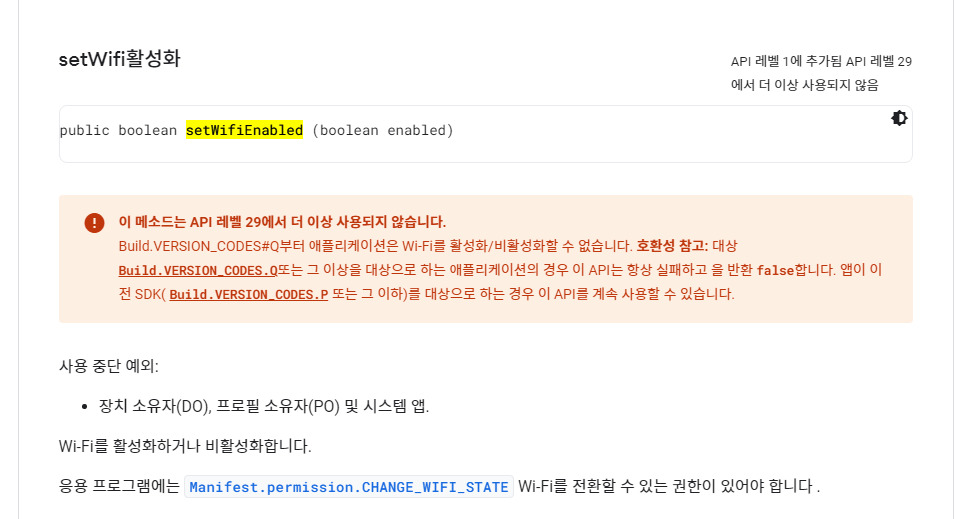
앱을 하나 만들고 있다. geoFences 을 이용해서 내가 지금 어디에 있는가를 보고 자동으로 설정을 하거나 알림을 하는 앱을 ... 그런데, 난관(?)이 하나 생겼다. 집을 나오면 wifi을 끄고, 다시 집에 오면 wifi 을 자동으로 켜는 기능을 넣고 싶었는데, 내가 지금 쓰는 폰이 API가 29 (Android 10) 이상이라는 상황 때문에 wifimanager 의 기능중에 setWifiEnabled 을 사용할 수 없다는 것이다.
#스하리1000명프로젝트, Nawala sa Korea? Kahit na hindi ka nagsasalita ng Korean, tinutulungan ka ng app na ito na madaling makalibot. Sabihin lang ang iyong wika—ito ay nagsasalin, naghahanap, at nagpapakita ng mga resulta pabalik sa iyong wika. Mahusay para sa mga manlalakbay! Sinusuportahan ang 10+ wika kabilang ang English, Japanese, Chinese, Vietnamese, at higit pa. Subukan ito ngayon! https://play.google.com/store/apps/details?id=com.billcoreatech.opdgang1127
또한 아래 예제에서 보여 주고 있는 것 처럼 adapter 을 구현하는 소스의 모양도 조금 다르니 구조를 보고 이해를 해 두는 것이 좋을 것 같다. listview 을 활용하는 경우의 adapter 구현을 모양과 비교를 해 보면 거의 비슷해 보이기는 하나, ViewHolder 을 기본으로 구현해 주고 있으니 잘 활용할 수 있으면 좋을 것 같다. ViewHolder 을 구현하는 이유는 자원 재활용에 도움이 된다고 했던 것으로 본 기억이 있다. list 가 스크롤 되면서 화면 밖으로 넘어가면 없어지고 그 자리를 다른 데이터로 채우는 모양으로 자원을 재활용 한다는 설명을 어딘가에서 보았던 기억이 난다.
public class SimpleTextAdapter extends RecyclerView.Adapter<SimpleTextAdapter.ViewHolder> {
private ArrayList<String> mData = null ;
// 아이템 뷰를 저장하는 뷰홀더 클래스. public class ViewHolder extends RecyclerView.ViewHolder { TextView textView1 ;
ViewHolder(View itemView) { super(itemView) ;
// 뷰 객체에 대한 참조. (hold strong reference) textView1 = itemView.findViewById(R.id.text1) ; } }
// 생성자에서 데이터 리스트 객체를 전달받음. public SimpleTextAdapter(ArrayList<String> list) { mData = list ; }
// onCreateViewHolder() - 아이템 뷰를 위한 뷰홀더 객체 생성하여 리턴. @Override public SimpleTextAdapter.ViewHolder onCreateViewHolder(ViewGroup parent, int viewType) { Context context = parent.getContext() ; LayoutInflater inflater = (LayoutInflater) context.getSystemService(Context.LAYOUT_INFLATER_SERVICE) ;
// onBindViewHolder() - position에 해당하는 데이터를 뷰홀더의 아이템뷰에 표시. @Override public void onBindViewHolder(SimpleTextAdapter.ViewHolder holder, int position) { String text = mData.get(position) ; holder.textView1.setText(text) ; }
// getItemCount() - 전체 데이터 갯수 리턴. @Override public int getItemCount() { return mData.size() ; } }
@Override public int getCount() { return chattingListArrayList.size(); }
@Override public ChatRooms getItem(int position) { return chattingListArrayList.get(position); }
@Override public long getItemId(int position) { return position; }
public void updateReceiptsList(ArrayList<ChatRooms> _oData) { chattingListArrayList = _oData; nListCnt = chattingListArrayList.size(); // 배열 사이즈 다시 확인 this.notifyDataSetChanged(); // 그냥 여기서 하자 }
Button crashButton = new Button(this);
crashButton.setText("Test Crash");
crashButton.setOnClickListener(new View.OnClickListener() {
   public void onClick(View view) {
       throw new RuntimeException("Test Crash"); // Force a crash
   }
});

addContentView(crashButton, new ViewGroup.LayoutParams(
       ViewGroup.LayoutParams.MATCH_PARENT,
       ViewGroup.LayoutParams.WRAP_CONTENT));
이건 뭐할 떄 쓰면 좋은가 하는 생각이 든다. 앱을 만들고 나서 누군가에게 전달을 했는데, 그 앱에서 에러가 난다고 한다. 흐미... 내가 테스트 할 때는 문제가 없었던 것 같은데 ...
그래서 이런 저런 방법을 찾아보던 중에 오호라... 이런 것도 있네... 각설하고... 일단 개발자 가이드를 읽어보자. 불행하게도 지금(2021.08.07일)까지는 한글로 된 문서가 안드로이드에 적합하게 되어 있지 않은 것 같다. 어쩔 수 없어 영문 사이트를 보면서 따라하기...(크롬의 자동번역기능을 이용해서)
내용은 같은 내용이지만, 아래 링크는 안드로이드에 대한 설며이 없고, 위에 링크는 설명은 있지만, 영문 페이지이고, 한글은 지원 하지 않는다. 아직 한글 사용자가 많지 않아서 인지... 흠흠흠...
뭐 하여간 크롬이 지원하는 자동번역기능을 이용해서 살펴보면...
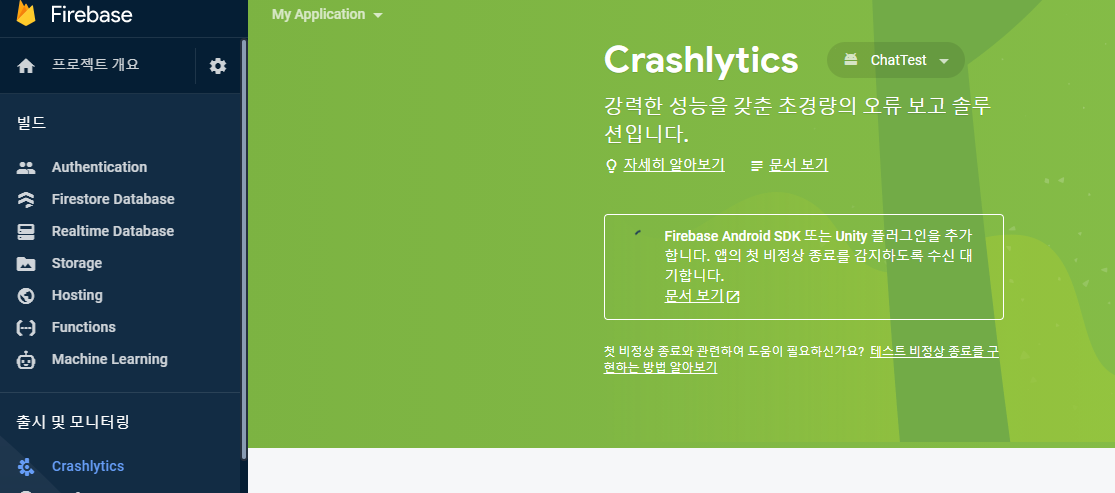
위 그림 처럼 firebase console 에서 Crashlytics 을 들어가 보면 모래시계가 나오고 계속해서 기다린다고 되어 있다. 그래서 설명을 읽고 Crashlytics 을 활성화 하고 그 다음 할일은 gradle 을 수정하는 것이다...
먼저 project 의 gradle 파일에 아래 classpath 을 추가한다.
    dependencies {
        ...

        // Add the Crashlytics Gradle plugin
        classpath 'com.google.firebase:firebase-crashlytics-gradle:2.7.1'
    }
}
다음은 apps 의 gradle 파일에 추가한다.
apply plugin: 'com.google.firebase.crashlytics'

...


dependencies {
    // Import the BoM for the Firebase platform
    implementation platform('com.google.firebase:firebase-bom:28.3.0')

    // Declare the dependencies for the Crashlytics and Analytics libraries
    // When using the BoM, you don't specify versions in Firebase library dependencies
    implementation 'com.google.firebase:firebase-crashlytics'
    implementation 'com.google.firebase:firebase-analytics'
}
그리고 나서 gradle 파일에서 sync 을 눌러서 필요한 파일들을 준비하고 나면 그다음은 마지막으로 MainActivity 에 아래 코드를 넣고 실행을 한번 하는 것이다.
Button crashButton = new Button(this);
crashButton.setText("Test Crash");
crashButton.setOnClickListener(new View.OnClickListener() {
   public void onClick(View view) {
       throw new RuntimeException("Test Crash"); // Force a crash
   }
});

addContentView(crashButton, new ViewGroup.LayoutParams(
       ViewGroup.LayoutParams.MATCH_PARENT,
       ViewGroup.LayoutParams.WRAP_CONTENT));
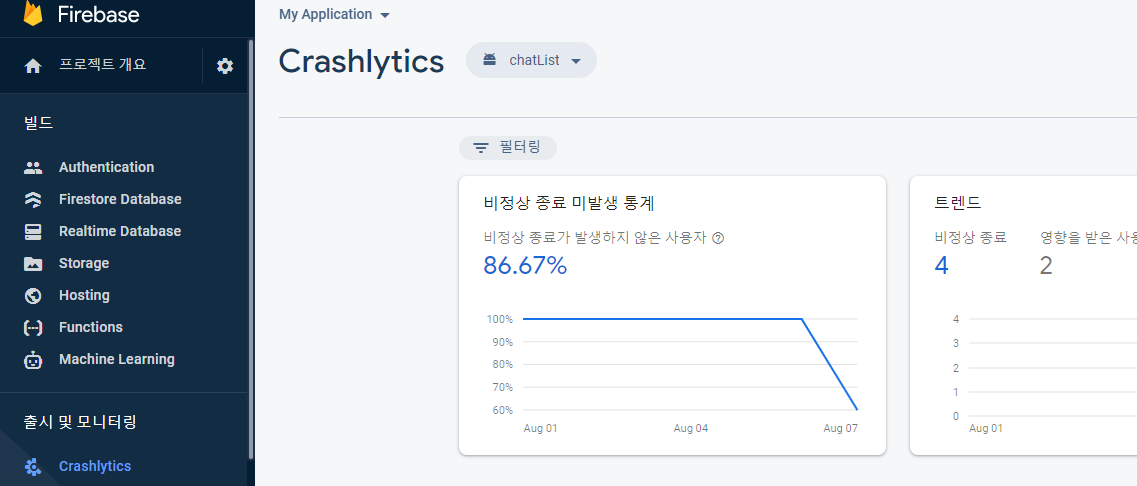
이 코드는 고민할 것도 없다. MainActivity 의 onCreate 에 넣고 실행하면 화면에 내가 design 하지 않은 버튼이 하나 나온다. Test Crash 라고 ... 그럼 그냥 한번 눌러주면 Firebase 의 console 화면이 변한다.. 아래 그림 처럼
그러면 이제 준비가 끝난 것이다. 그럼 이제 MainActivity 에 넣어던 위에 Test Crase 버튼은 필요가 없다. comment 처리를 하고 내가 만든 앱을 실행해 보는 것이다. 그러면 혹시나 모르는 오류가 발생했을 떄, console 에서 리스트를 확인해 볼 수 있다. 원격지에 있는 사람이 사용하다가 오류를 발생시키더라도 그의 폰에서 로그를 받아올 필요가 없어지는 것이다.